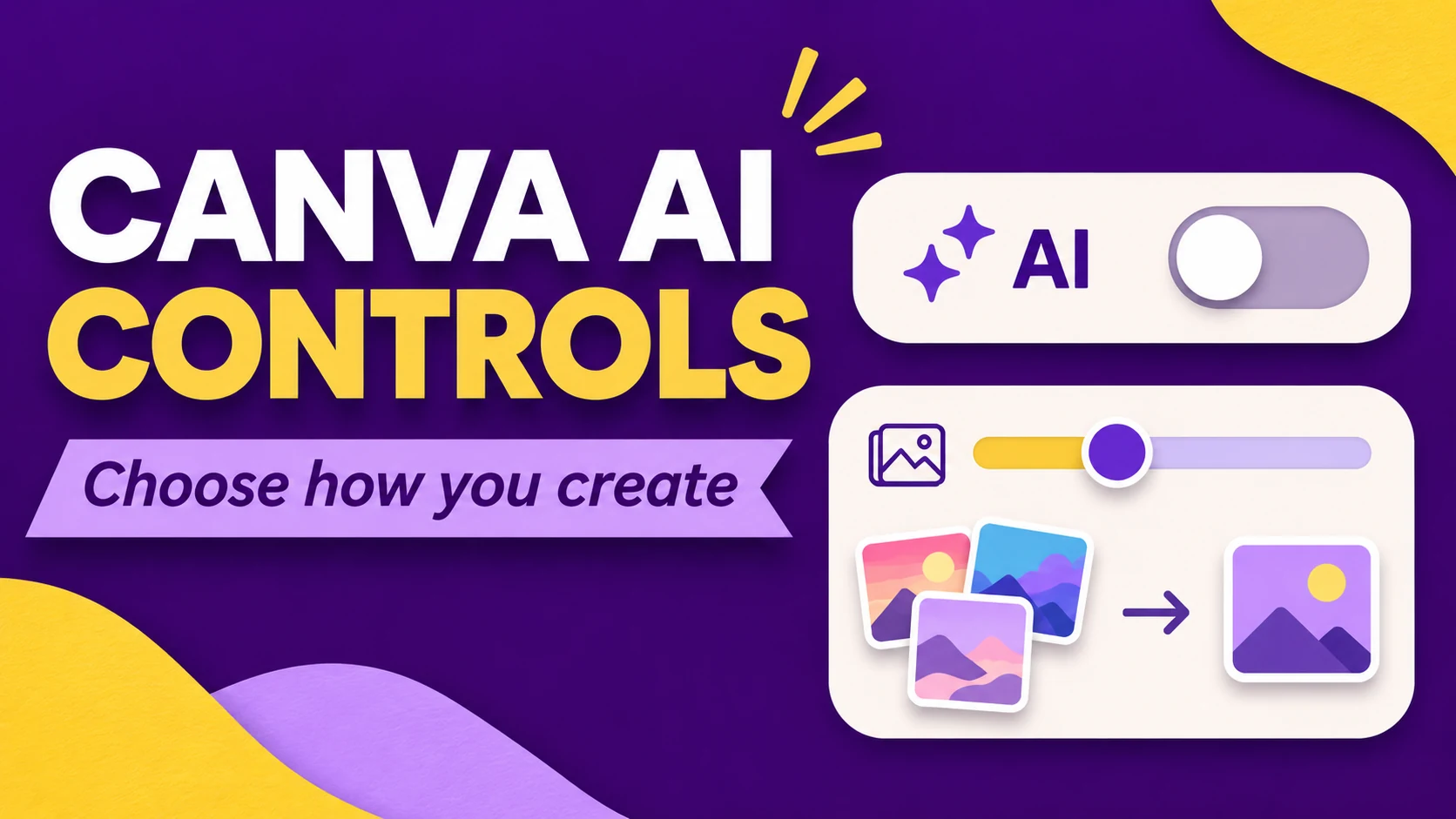
Suppose you are making a client cover in Canva and need to keep the final design grounded in your own photography, licensed illustrations, and human-made templates. On November 19, 2026, Canva announced two controls that change that workflow: one hides generative AI features, while the other shows less AI-generated material in library results. Canva says both are available on Free and Pro at no additional cost. They solve different problems, and neither is a blanket certification that a design contains no AI.
Two settings, two decisions
The Generative AI Control affects the editor. Go to Profile → Settings → Permissions and look for “Enable Generative AI features.” Turning it off hides Canva's generative features; you can turn them back on later. This is useful when a client asks your team to avoid generating or transforming campaign assets and you want fewer accidental clicks during production.
The AI-Generated Content Control affects discovery. Under Profile → Your account → AI Personalization, you can reduce AI-generated assets in library search results and recommendations. Canva says this does not alter existing designs. The word “reduce” matters: do not treat the remaining results as a verified human-only catalogue. You still need to inspect the origin and licensing of each selected asset.
A useful test for a creator or small team
- Check whether both settings appear in your Free or Pro account. Canva says they are available today, but we have not tested an account, region, or rollout ourselves.
- Duplicate one real cover draft. With your current settings, search the library for a specific term such as “paper texture” and record the first five results.
- Switch off generative features and enable the content reduction setting. Repeat the same search. Compare the actual results and whether your usual editing actions remain available.
- Choose an asset whose creator, license, and attribution requirements you can document. Save the asset URL and permission details with the exported cover.
- Export the second version. If background removal or object selection is part of your workflow, check those actions separately; Canva says Background Remover and Magic Grab remain available as assistive editing tools.
Use the outcome to decide whether these settings belong in your team's standard brief. For a client with a strict asset policy, record the selected settings and keep source files and licenses outside the design tool. A toggle is helpful process control, but it is not a substitute for a rights trail.
Where the controls stop
Canva says its assistive editing tools remain accessible when generation is off, and says using Background Remover alone will not cause Canva to mark a design as AI-generated. That describes Canva's own behavior; it does not guarantee how every platform, customer, or legal process will classify an exported asset. Likewise, lowering AI-generated library content does not promise zero such items.
The announcement also distinguishes these personal controls from the AI permissions Canva already offers administrators on Business, Enterprise, Teams, and Education. If you work in a managed workspace, confirm which settings your admin controls and which settings you can change yourself. The post does not establish a universal setting for every account or a new license for library assets.
What to do this week
If your job depends on finding human-made templates and avoiding accidental generation, try both controls on a single cover and compare the results. If generation is part of your creative process, keep it available, document where it was used, and review licensing and disclosure requirements before publishing. One controlled comparison tells you more than changing every template based on a launch announcement.
Primary source: Canva Newsroom, “Introducing AI Controls: Your creativity, your call”, November 19, 2026. Availability, menu paths, and product limits above come from Canva's announcement. The proposed comparison is a reader test; SoyJB has not claimed to run it inside a Canva account.