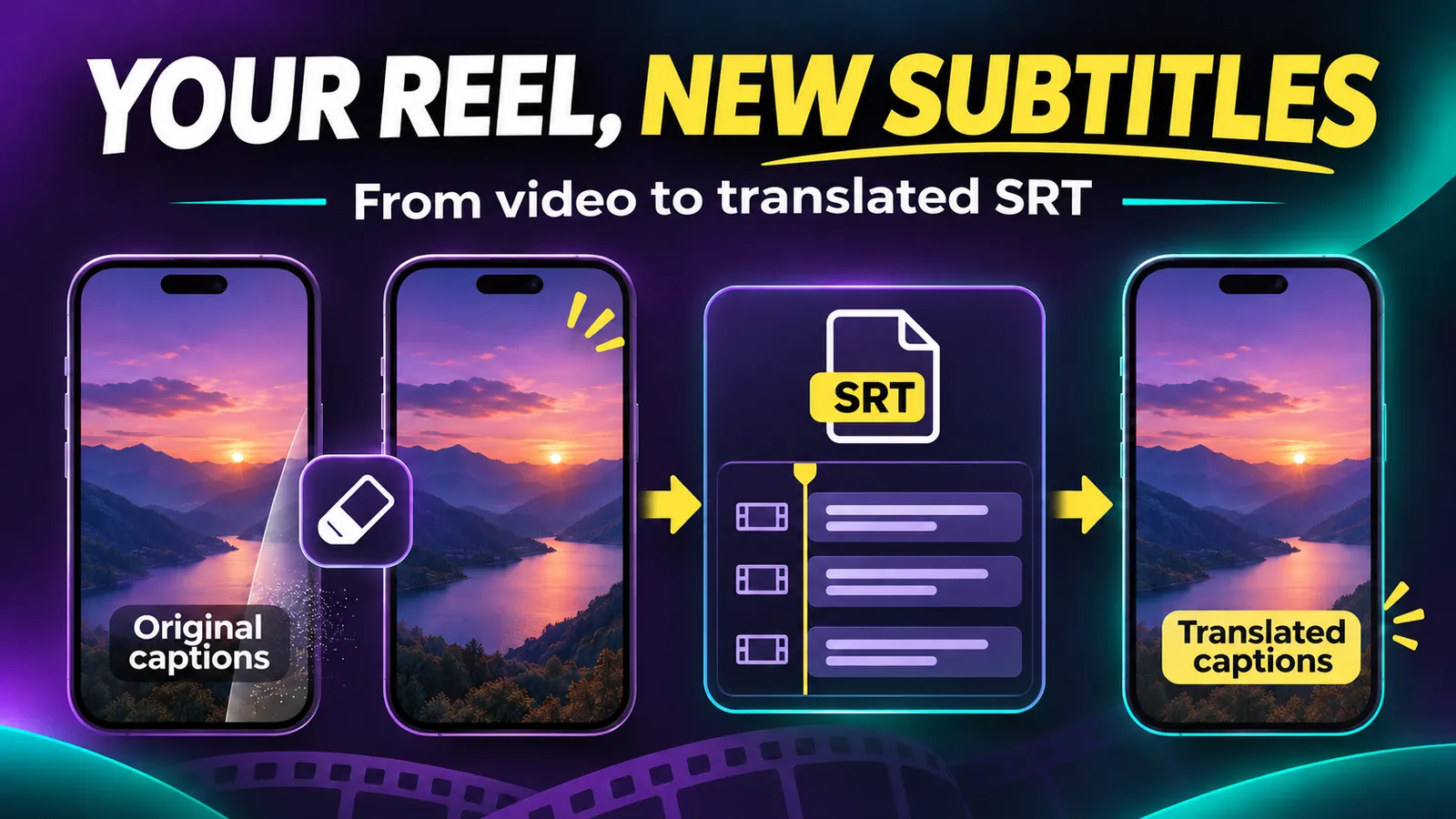
You published a Reel with large captions baked into the video. Now you want a version for viewers who read another language. Adding a second caption layer on top usually makes both hard to read. The fix starts with identifying the kind of captions you have, then producing a clean video and a translated subtitle file you can reuse.
Can you turn the captions off?
Open your original video in an editor or player. If the text is a separate track you can hide, keep the clean video and export that track. You do not need to erase pixels. If the words are visible in every frame, they are burned in; removing them means reconstructing the area underneath. Work only on your own videos or material you have permission to edit, and keep the original file.
For a short clip with burned-in captions, SoyJB's Remove Subtitles tool processes video in your browser. Its page lists limits of 5 minutes and 500 MB with a GPU, or 3 minutes and 300 MB without one, with processing capped at 1080p. Select the caption area and test one frame before running the entire clip. Letter-only removal suits pale text with a dark outline; colored boxes may require the full-strip mode. Hair, hands or detailed backgrounds can retain artifacts because the tool reconstructs pixels rather than recovering the original image.
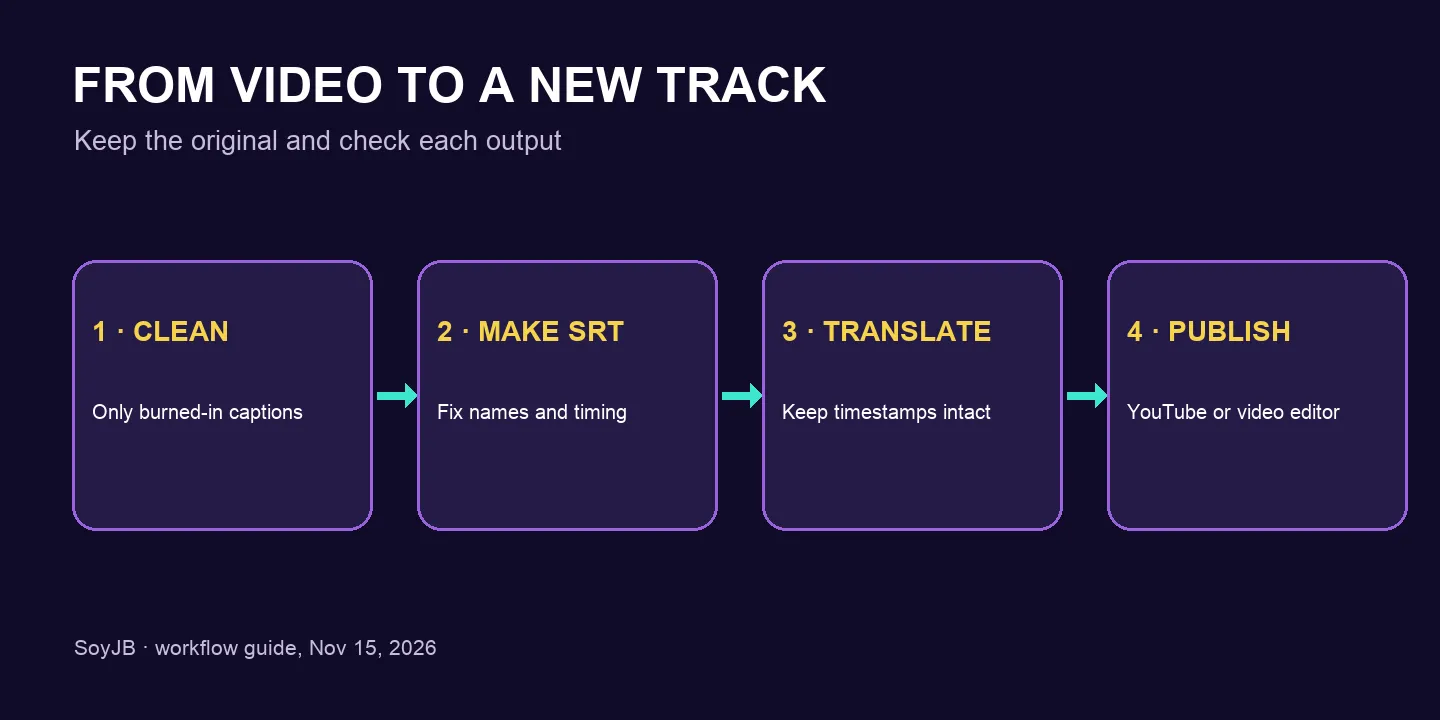
Generate and correct the original track
Open the clean video in SoyJB's Add Subtitles tool. Its public specifications describe MP4, MOV and WebM input up to 20 minutes and 2 GB, with transcription in the browser. Choose the spoken language, generate captions, then correct names, numbers, acronyms and negations. You can download an SRT file or an MP4 with captions burned in. For a multilingual workflow, download SRT: it carries timing and can be translated without transcribing the audio again.
The current tool allows text edits but does not manually reposition timestamps. If timing is wrong, repair the SRT in a subtitle editor before translation. Inspect the first, middle and final blocks, plus every important name or number. A basic SRT block contains a sequence number, start and end time, and the line:
1
00:00:01,000 --> 00:00:03,000
This tip saved me an hour.

2
00:00:03,000 --> 00:00:05,000
First I checked the result.
Translate the words, not the timestamps
You can use a translator or an AI model, but keep numbering and timestamps unchanged. If captions contain private information, get permission before pasting them into an external service. Copy this prompt and paste your corrected SRT below it:
Translate this SRT from English into Spanish for a video.
Keep every block number and timestamp exactly unchanged.
Do not add blocks or invent lines absent from the source.
Use natural Spanish and short lines that fit within two rows.
If a proper name or number is ambiguous, preserve it and flag it
after the SRT under "Review".
Return the translated SRT first, inside one code block.

SRT:
[PASTE THE CORRECTED FILE HERE]
In the example, “This tip saved me an hour” could become “Este consejo me ahorró una hora.” That is an illustrative translation, not a tested model result. Review every number and play the new SRT with the video: a longer translation may overrun the time slot or cover a face.
Publish for the destination
YouTube: in YouTube Studio, open Subtitles, add the target language and upload the file with timing. Viewers can turn that track on or off. YouTube Help documents the steps. If the picture still has burned-in captions in the original language, the new track will overlap; use the clean video first.
Reels or TikTok: if the new words must be part of the MP4, import the translated SRT into a video editor. CapCut's help page documents SRT import on desktop and web, where caption blocks can be edited; the mobile app does not directly import external SRT in that guide. Check feature access and plan in your account. SoyJB's caption generator does not currently document translation or importing a translated SRT as a fresh track, so do not assume those steps exist in its interface.
Before sharing, watch the beginning, middle and end on a phone. Check that you have one caption layer, names are correct and text does not block important visual elements. Translated subtitles do not replace the spoken voice; dubbing is a separate workflow.
Sources: SoyJB Remove Subtitles; SoyJB Add Subtitles; YouTube Help; CapCut Help. This is a proposed workflow based on documented features; it is not presented as a test on Joseph's video.