An AI-built signup form looks polished in a screenshot. Then a tester tries to use it without a mouse and gets stuck; another hears “edit box” from a screen reader without knowing whether it wants an email or a password. The visual design did not reveal the problem. The user cannot complete the job the product was built to support.
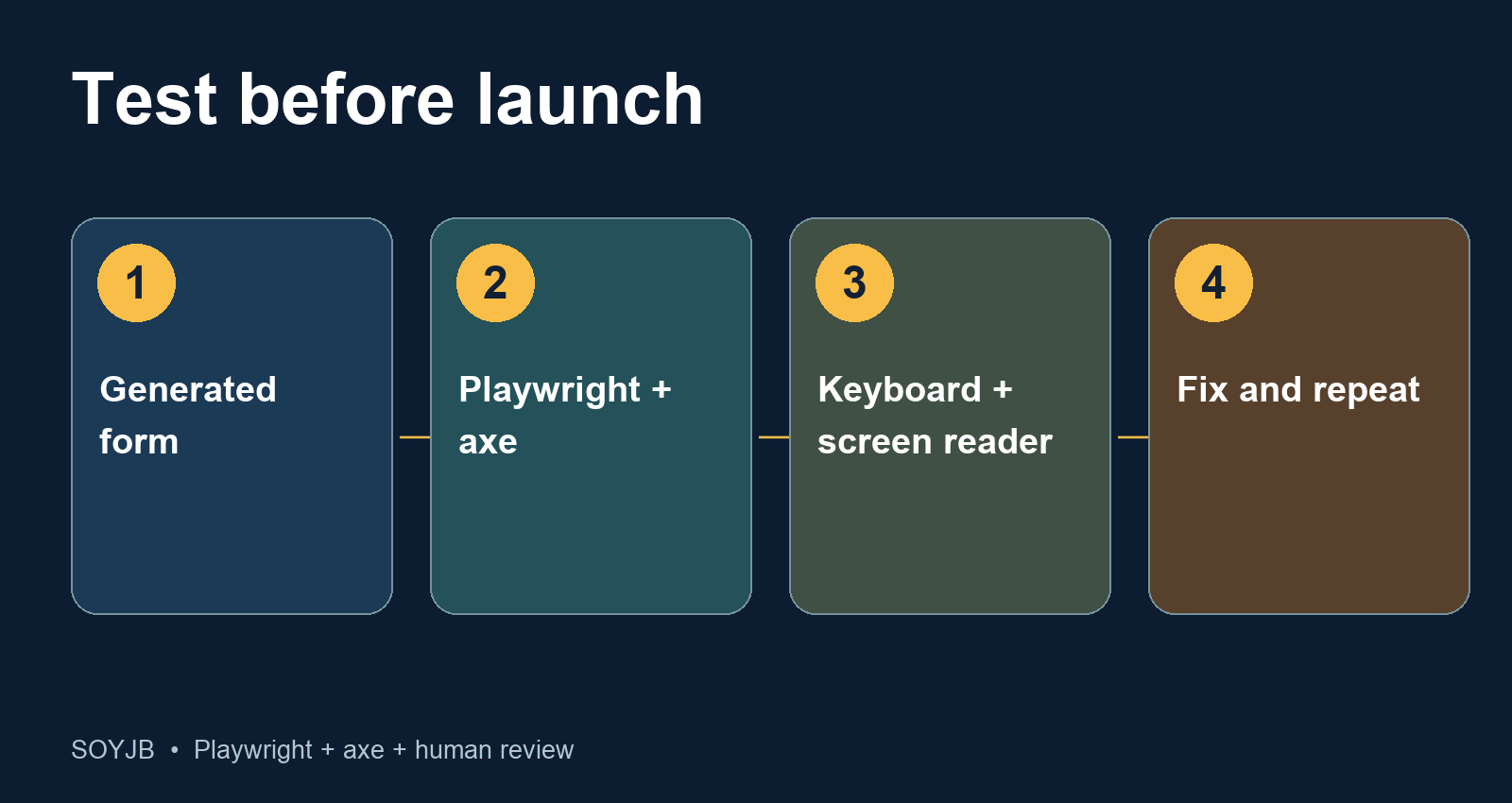
Before you ship a prototype from Lovable, v0, Replit, Cursor, or another AI builder, run a small repeatable accessibility check. Playwright's official guide shows how to run the axe engine inside a browser test. It catches some common issues, such as controls without labels and contrast problems. Then use a keyboard and human judgment. Both Playwright and the W3C say automated tools cannot establish full accessibility on their own.
Start with one real task
Take a contact form with name, email, message, and submit button. The question is not “can I get a perfect accessibility score?” It is “can someone identify each field, reach it by keyboard, understand an error, correct it, and submit without a mouse?” That is a testable launch decision.
In a JavaScript or TypeScript project, install Playwright Test and the official axe integration. If Playwright is already present, add only the axe package:
npm install --save-dev @playwright/test @axe-core/playwright
npx playwright install chromium
Start your app with its normal development command and check the form's local URL. The example below uses http://localhost:3000/contact; replace both the port and path for your app. Save this as tests/contact-a11y.spec.js:
const { test, expect } = require('@playwright/test');
const AxeBuilder = require('@axe-core/playwright').default;

test('contact form has no automatically detected A/AA violations', async ({ page }) => {
  await page.goto('http://localhost:3000/contact');
  await expect(page.getByRole('heading', { name: /contact/i })).toBeVisible();

  const result = await new AxeBuilder({ page })
    .withTags(['wcag2a', 'wcag2aa', 'wcag21a', 'wcag21aa'])
    .analyze();

  expect(result.violations).toEqual([]);
});
Run npx playwright test tests/contact-a11y.spec.js while your local server is running. Playwright uses those tags in its documentation as an example of WCAG 2.0 and 2.1 A/AA rules. They do not cover every WCAG criterion or every version of the standard. If the test fails, inspect the rule ID and affected nodes. Fix the interface and run it again. Keep the test in the repository so the next AI-generated change cannot silently reintroduce the same detectable issue. Avoid excluding the whole form with exclude(); Playwright notes that the method also skips all descendants.
Manual checks the scanner cannot replace
Put the mouse aside. Press Tab from the top of the page and check whether a visible focus indicator moves through the controls in a sensible order. For each field, ask whether its purpose is clear without relying on placeholder text. Submit the empty form: is each error understandable, associated with the right control, and available to assistive technology? Try browser zoom at 200% and a narrow viewport; check for clipped content and controls that disappear.
If you have access to a screen reader, repeat the form task with it. Ask someone outside the development team to complete the form without coaching. They may find confusing wording or navigation that an automated rule will never flag. W3C's guidance is explicit that tools can assist evaluation but human judgment remains necessary.
Give your AI agent a concrete correction task
Paste the actual failing rule and node into the agent. A useful instruction is: “Fix the axe violations on /contact. Preserve form submission. Add programmatically associated labels, visible focus, and clear error messages. Show the diff. Do not call the task done until I rerun the browser test and review the keyboard flow.”
The agent can draft a fix, but the owner of the product must verify the experience. If the automated test passes while keyboard navigation remains confusing, the work is not complete. A visually attractive form with unlabeled custom controls is still a broken form for some people.
Scope and evidence: I did not execute this test against your app, and a passing axe scan does not establish legal compliance. The code follows Playwright's published syntax; adapt the route, server, and heading to your project. Keep the test output, a short manual review note, and the corrected diff as your launch evidence.
Primary sources: Playwright accessibility testing; W3C WAI evaluation tools. Checked November 2, 2026.