
Imagine a founder processing ten supplier forms every morning. It is tempting to ask an agent to open each page, copy the details and click Submit. On October 30, 2026, Google made Gemini Computer Use generally available across the Interactions and GenerateContent APIs. That is useful news for builders who must operate an existing interface, but it is not a reason to hand an agent unrestricted access to a production account.
What actually became available
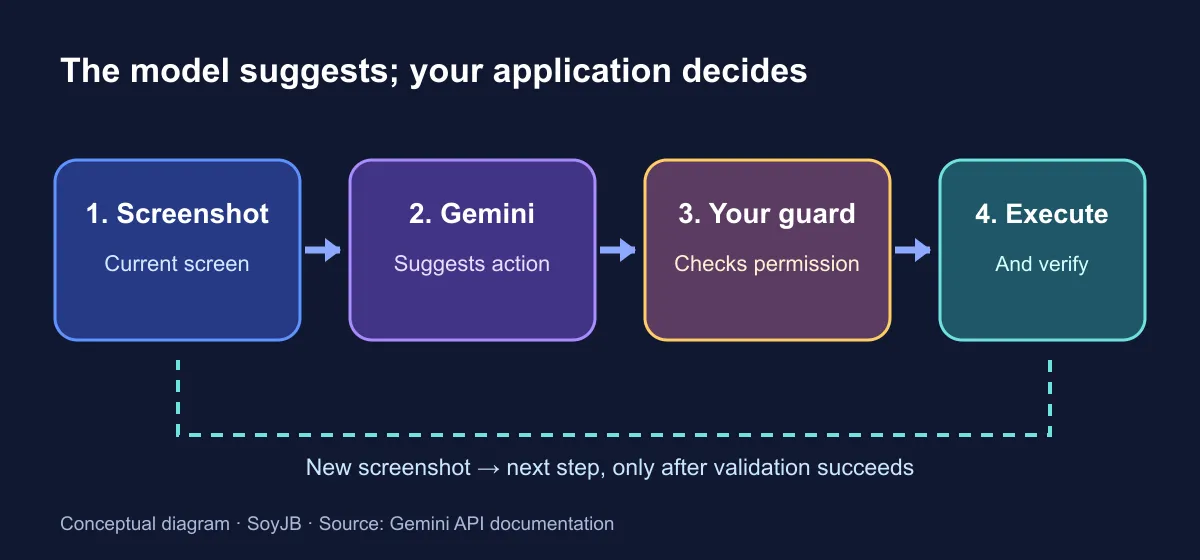
Computer Use lets a compatible model inspect a screenshot and propose UI actions such as clicks, typing and scrolling. Google's documentation covers browser, mobile and desktop environments and recommends Gemini 3.8 Flash for computer-use tasks. General availability applies to the API tool. It does not give your app a managed browser or execute actions on your behalf. Your client must receive each proposed action, check it, run it with a driver such as Playwright, capture the new screen and continue the loop.
That makes the tool relevant when a service has no suitable API: checking a public dashboard, exercising a test checkout or entering sample data into an internal demo. The value disappears quickly if a wrong click can publish content, change a customer record or spend money. The interesting engineering decision is where to put the boundary between the model's suggestion and your application's authority.
A useful test you can run this week
Start with a page you control. Create a dummy form with no real users, payments or personal information. Give the agent one narrow task: “Find the name field and enter Sample User, then stop before saving.” Decide what success looks like before the run: the right field contains the sample text, no other field changes and the Save button remains untouched. Set a short step limit so a failed attempt cannot wander indefinitely.
- Isolate the browser. Use a test account and a sandboxed session. Restrict reachable domains, and retain screenshots and action logs.
- Send one screen and one goal. Configure a supported model with the
computer_usetool. Google's example usesgemini-3.8-flashand enables screenshot prompt-injection detection. - Inspect the proposed action. Your client checks action type, coordinates, destination and any safety decision. If confirmation is required, pause. Only then should your browser driver execute the permitted step.
- Verify the next screen. Compare the new screenshot with the expected state. Stop when the condition is met or the step limit is reached.
The following snippet adapts the official first-request example. It needs google-genai 2.7.0 or later and a configured Gemini API key. It does not perform clicks; the action handler, screenshot loop and checks described above are separate work. I have not run this call in a Google account for this article.
from google import genai

client = genai.Client()
interaction = client.interactions.create(
    model="gemini-3.8-flash",
    input="On a test page, find the name field. Stop before saving.",
    tools=[{
        "type": "computer_use",
        "environment": "browser",
        "enable_prompt_injection_detection": True,
    }],
)
print(interaction)
What to check before building a product around it
Web pages can carry adversarial instructions inside visible or hidden content. Google offers optional screenshot injection detection and safety decisions for some actions, but your application still controls execution and must handle confirmation. Each turn also processes screenshots and generates model tokens. Check the current model pricing and your project's limits before scaling; this article has no independent benchmark for accuracy, latency or cost.
A sensible choice is to use a conventional API whenever one exists. When a GUI is the only path, test one reversible action in isolation and inspect its evidence. Expand permissions only after you can explain how the agent stops, how a person intervenes and how you know the task succeeded.