Suppose you save three official product announcements every morning for later research. Copying URLs into a notebook works once, but repeating the task for weeks makes missed sources likely. Google's Gemini Notebook API can create a notebook, ingest a public URL, and tell you when processing is finished. This guide walks through that single-source workflow and marks the boundary of what the preview API can do.
Outcome: you will add an official web page to a notebook and wait for ACTIVE. The API will not automatically answer questions about that source or publish a summary; the current preview does not provide a chat/query tool.
Check access before writing code
Google's official quickstart requires a personal Google Account that has signed in to Gemini Notebook at least once, a Google Cloud project with notebook.googleapis.com enabled, and an OAuth token with the https://www.googleapis.com/auth/notebook scope. Workspace accounts currently receive 403. A personal account that has never opened Notebook may receive 404 when creating its first notebook. A regular Gemini API key is insufficient.
The preview API is free subject to quotas. Google's published limits include 20 CreateSource calls per minute per user. The free tier currently allows 100 notebooks per user and 50 sources per notebook. Recheck these figures before designing a large scheduled import.
1. Set up OAuth for a local test
Install the gcloud CLI, replace the project ID, and run the following in your terminal. The login step opens a browser to request your consent. Keep the resulting token out of repositories, screenshots, and shared logs.
export PROJECT_ID="YOUR_PROJECT_ID"
gcloud services enable notebook.googleapis.com --project="$PROJECT_ID"
gcloud auth application-default login \
  --scopes="https://www.googleapis.com/auth/cloud-platform,https://www.googleapis.com/auth/notebook"
export ACCESS_TOKEN="$(gcloud auth application-default print-access-token)"
Local Application Default Credentials require the x-goog-user-project header on every call. The printed access token expires after roughly an hour, so refresh it for a later run. Production services need their own OAuth flow rather than a saved copy of this local token.
2. Create a notebook and ingest a URL
Here the source is Google's public Gemini API documentation. The shell exits on an HTTP error and reads the returned resource names from JSON. Python 3 is used only to parse that JSON. Inspect error responses rather than blindly rerunning a successful request; the simple example creates a fresh notebook on each run.
set -euo pipefail
API_ROOT="https://notebook.googleapis.com/v1"
NOTEBOOK_JSON="$(curl --fail-with-body -sS -X POST "$API_ROOT/notebooks" \
  -H "Authorization: Bearer $ACCESS_TOKEN" \
  -H "x-goog-user-project: $PROJECT_ID" \
  -H "Content-Type: application/json" \
  -d '{"display_name":"Official AI sources"}')"
NOTEBOOK_NAME="$(printf '%s' "$NOTEBOOK_JSON" | python3 -c 'import json,sys; print(json.load(sys.stdin)["name"])')"
SOURCE_JSON="$(curl --fail-with-body -sS -X POST "$API_ROOT/$NOTEBOOK_NAME/sources" \
  -H "Authorization: Bearer $ACCESS_TOKEN" \
  -H "x-goog-user-project: $PROJECT_ID" \
  -H "Content-Type: application/json" \
  -d '{"display_name":"Gemini API docs","web_content":{"url":"https://ai.google.dev/gemini-api/docs"}}')"
SOURCE_NAME="$(printf '%s' "$SOURCE_JSON" | python3 -c 'import json,sys; print(json.load(sys.stdin)["name"])')"
printf 'Notebook: %s\nSource: %s\n' "$NOTEBOOK_NAME" "$SOURCE_NAME"
The API also supports YouTube URLs and plain text or Markdown sources. Change the payload using the documented formats. For a scheduled multi-URL pipeline, persist notebook and source names, then check them before submitting again. This introductory script does not deduplicate submissions.
3. Poll until processing completes
Source creation is asynchronous. A successful POST means the request was accepted, not that the source can be used yet. The loop below checks for up to one minute and exits on either ACTIVE or FAILED. Increase the timeout when larger sources need more time.
for attempt in $(seq 1 30); do
  STATE_JSON="$(curl --fail-with-body -sS "$API_ROOT/$SOURCE_NAME" \
    -H "Authorization: Bearer $ACCESS_TOKEN" \
    -H "x-goog-user-project: $PROJECT_ID")"
  STATE="$(printf '%s' "$STATE_JSON" | python3 -c 'import json,sys; print(json.load(sys.stdin).get("state","UNKNOWN"))')"
  case "$STATE" in
    ACTIVE) printf 'Source ready: %s\n' "$SOURCE_NAME"; break ;;
    FAILED) printf 'Processing failed: %s\n' "$STATE_JSON" >&2; exit 1 ;;
    *) sleep 2 ;;
  esac
done
if [ "$STATE" != ACTIVE ]; then
  printf 'Still not ACTIVE. Inspect: %s\n' "$SOURCE_NAME" >&2
  exit 1
fi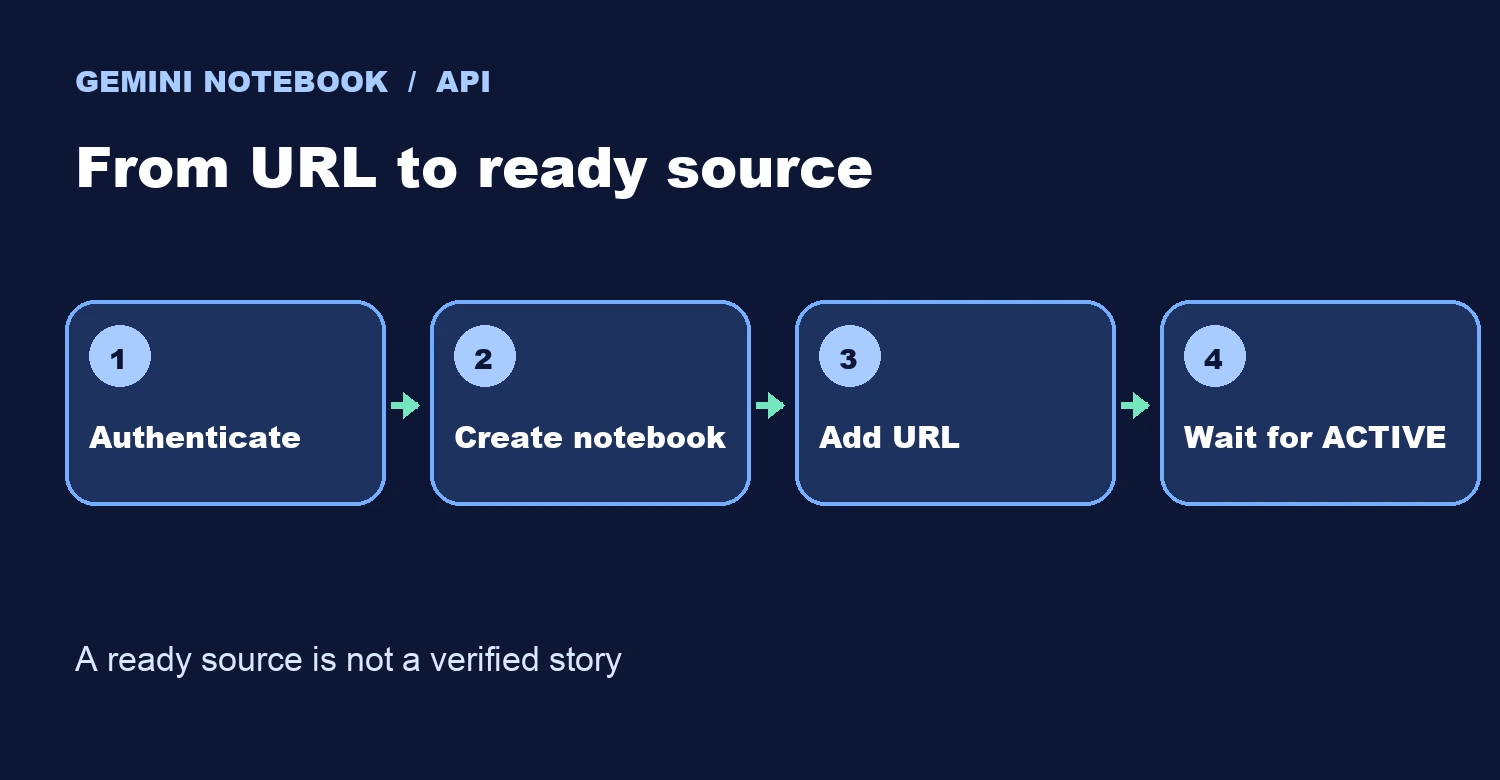
Build a research workflow without overclaiming
A useful next step is a small feed of official product URLs: filter for dated, actionable changes, add the selected pages, and then open Gemini Notebook to compare the original claims and citations. Ingesting a page is not verification of the claim or proof that a feature has rolled out to every account. Keep human editorial review before publication.
Google's official MCP server currently exposes seven notebook and source management tools, not a conversation tool. If your goal is to ask Claude Code questions about sources, read our separate Claude Code and NotebookLM integration guide; this tutorial solves the narrower task of source ingestion and processing checks.
Try it today: add one official URL, record the notebook and source resource names, check for ACTIVE, and open the notebook to confirm that it points to the intended material. I did not execute this flow against a personal Google Account for this article; the commands follow Google's quickstart and need validation in your own project.