A store claims its ChatGPT business profile and connects a catalog. In its source sheet, the price reads $18, the image points to an HTML page, and two variants share an ID. The file looks fine at a glance, yet these details can make a product ambiguous or cause a row to fail. The useful move is to prepare a small feed, check its fields, and inspect what the platform actually accepts.
This is the implementation follow-up to our Business Hub overview. OpenAI allows a CSV product feed after the required business claim and identity verification. A hosted feed URL is also supported, and some setups can connect Shopify. Connecting products neither publishes a Business Agent nor guarantees that ChatGPT will recommend them. First, confirm that this option is available for your business in Business Hub.
The nine fields to prepare
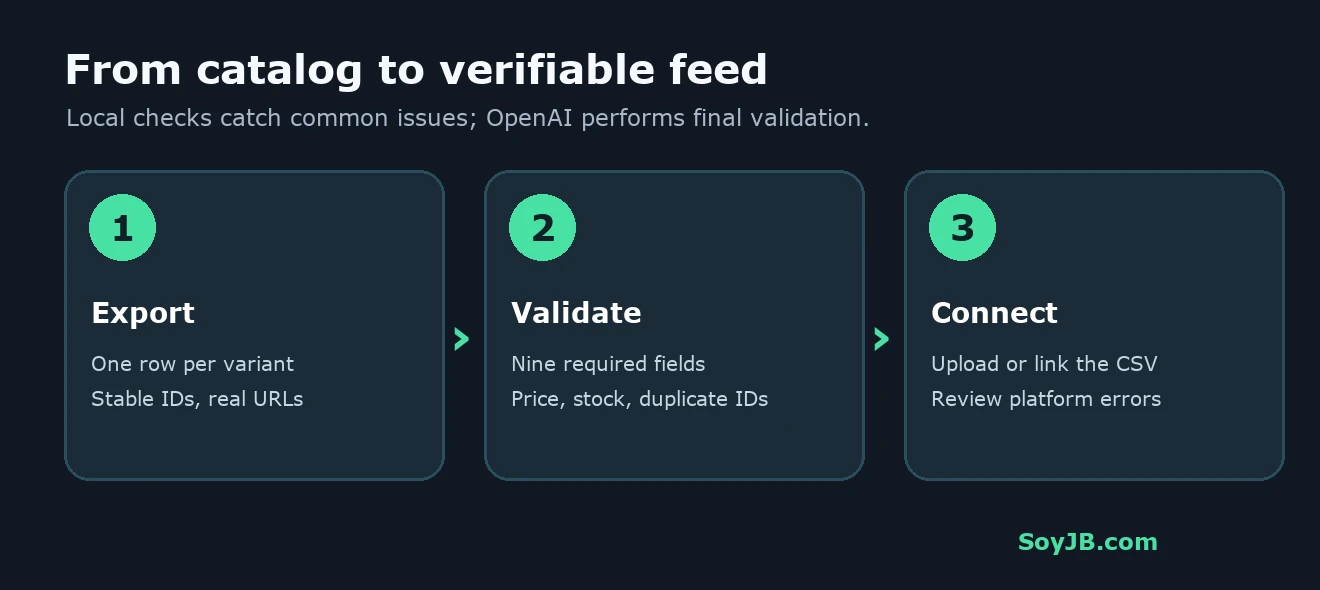
OpenAI's stable product feed specification requires item_id, title, description, url, brand, seller_name, image_url, availability, and price for a useful discovery feed. Each row represents a purchasable item or variant. The ID must be unique and stable: a price or stock change should not create a new ID, while a different size needs its own ID and variant grouping fields where appropriate.
url should lead to the public product page, ideally with the exact variant selected. image_url should link directly to a public image of that variant, rather than the product page or a private asset. Accepted availability values are in_stock, out_of_stock, pre_order, backorder, and unknown. If stock is genuinely unavailable, unknown is more honest than inventing availability. Write money as an amount and currency, such as 18.00 USD; avoid $18, thousands separators, or a price that differs from checkout.
A minimal CSV to adapt
Save this example as products.csv in UTF-8. The domain and merchant are placeholders: replace them with your real store, verify that the page and image are public, and match the price to checkout. CSV cells containing commas must be quoted, as in the title below.
item_id,title,description,url,brand,seller_name,image_url,availability,price
MUG-350-BLUE,"Blue ceramic mug, 350 mL",Dishwasher-safe ceramic mug with a handle,https://example.com/products/mug-blue,Northline,Northline Home,https://example.com/images/mug-blue.jpg,in_stock,18.00 USD
This is a structure example, not a claim that SoyJB sells the product or that the example URL resolves. For sizes or colors, use one row per purchasable combination. Follow the specification's variant section for group_id, listing_has_variations, and variant_dict; do not reuse a single item_id across every option.
Run a local check before upload
The Python script below uses only the standard library. It checks required columns and cells, duplicate IDs, stock values, basic money formatting, and absolute HTTP(S) URLs. Save it as validate_feed.py and run python3 validate_feed.py products.csv. I tested the same logic locally with the sample above and a deliberately broken file: the clean sample returned “Basic local check: OK”; the broken one flagged invalid stock, a zero price, a relative URL, and a duplicate ID. This script makes no network requests, so it does not prove that image URLs load.
"""Minimal local check for a product discovery CSV feed.

It does not replace OpenAI validation, policies, or approval.
Usage: python3 validate_feed.py products.csv
"""

import csv
import re
import sys
from urllib.parse import urlparse

REQUIRED = (
    "item_id", "title", "description", "url", "brand", "seller_name",
    "image_url", "availability", "price",
)
STOCK = {"in_stock", "out_of_stock", "pre_order", "backorder", "unknown"}
PRICE = re.compile(r"^(?!0+(?:\.0{1,2})? )[0-9]+(?:\.[0-9]{1,2})? [A-Z]{3}$")


def public_url(value):
    parsed = urlparse(value)
    return parsed.scheme in {"http", "https"} and bool(parsed.netloc)


def validate(path):
    errors = []
    seen = set()
    with open(path, newline="", encoding="utf-8-sig") as file:
        reader = csv.DictReader(file)
        missing = [name for name in REQUIRED if name not in (reader.fieldnames or [])]
        if missing:
            return [f"Missing columns: {', '.join(missing)}"]
        for line, row in enumerate(reader, start=2):
            if None in row:
                errors.append(f"Line {line}: more cells than columns")
            for name in REQUIRED:
                if not (row.get(name) or "").strip():
                    errors.append(f"Line {line}: {name} is empty")
            item_id = (row.get("item_id") or "").strip()
            if item_id in seen:
                errors.append(f"Line {line}: duplicate item_id: {item_id}")
            seen.add(item_id)
            if row.get("availability") not in STOCK:
                errors.append(f"Line {line}: invalid availability")
            if row.get("price") and not PRICE.fullmatch(row["price"]):
                errors.append(f"Line {line}: invalid price; use 18.00 USD")
            for name in ("url", "image_url"):
                if row.get(name) and not public_url(row[name]):
                    errors.append(f"Line {line}: {name} must be an absolute HTTP(S) URL")
    return errors


if __name__ == "__main__":
    if len(sys.argv) != 2:
        raise SystemExit("Usage: python3 validate_feed.py products.csv")
    issues = validate(sys.argv[1])
    print("\n".join(issues) if issues else "Basic local check: OK")
    raise SystemExit(bool(issues))
This is intentionally a first pass. Its money pattern handles common formats with up to two decimal places, not the complete ISO 4217 precision rules or all of OpenAI's optional and conditional fields. Before submitting a real feed, check live URLs, variants, commerce policies, the currency agreed for your integration, current inventory, and agreement with public product pages. A file that passes a local script is not an approved feed.
Connect it, inspect errors, then maintain it
- After business claim and Persona approval, open your Business Hub profile and find the product-feed option. If it is absent, verify eligibility and approval status before building an automated export.
- Upload the CSV or provide a stable hosted URL, depending on the available workflow. A hosted URL can reduce manual uploads for a changing catalog, provided the file stays public and current.
- Read any OpenAI processing errors. Fix the source row, regenerate the file, and check it again. Local success does not override platform rules or commerce policies.
- Reconcile the feed with your live store after connecting: product pages, images, prices, and inventory should agree. A website price change without a feed update can mislead a shopper.
For a small merchant, start with five products that already have working pages and images, validate the import, and set an update routine. Sending hundreds of broken rows to “show up more” is not a growth strategy. OpenAI says search eligibility and feed connection do not guarantee display or recommendation. They are also separate from ads and integrated checkout.
Sources and limits
OpenAI Help, Business Hub setup; OpenAI Developers, stable product specification. Reviewed November 11, 2026. The example and validator are locally tested educational materials; no real SoyJB feed was submitted.