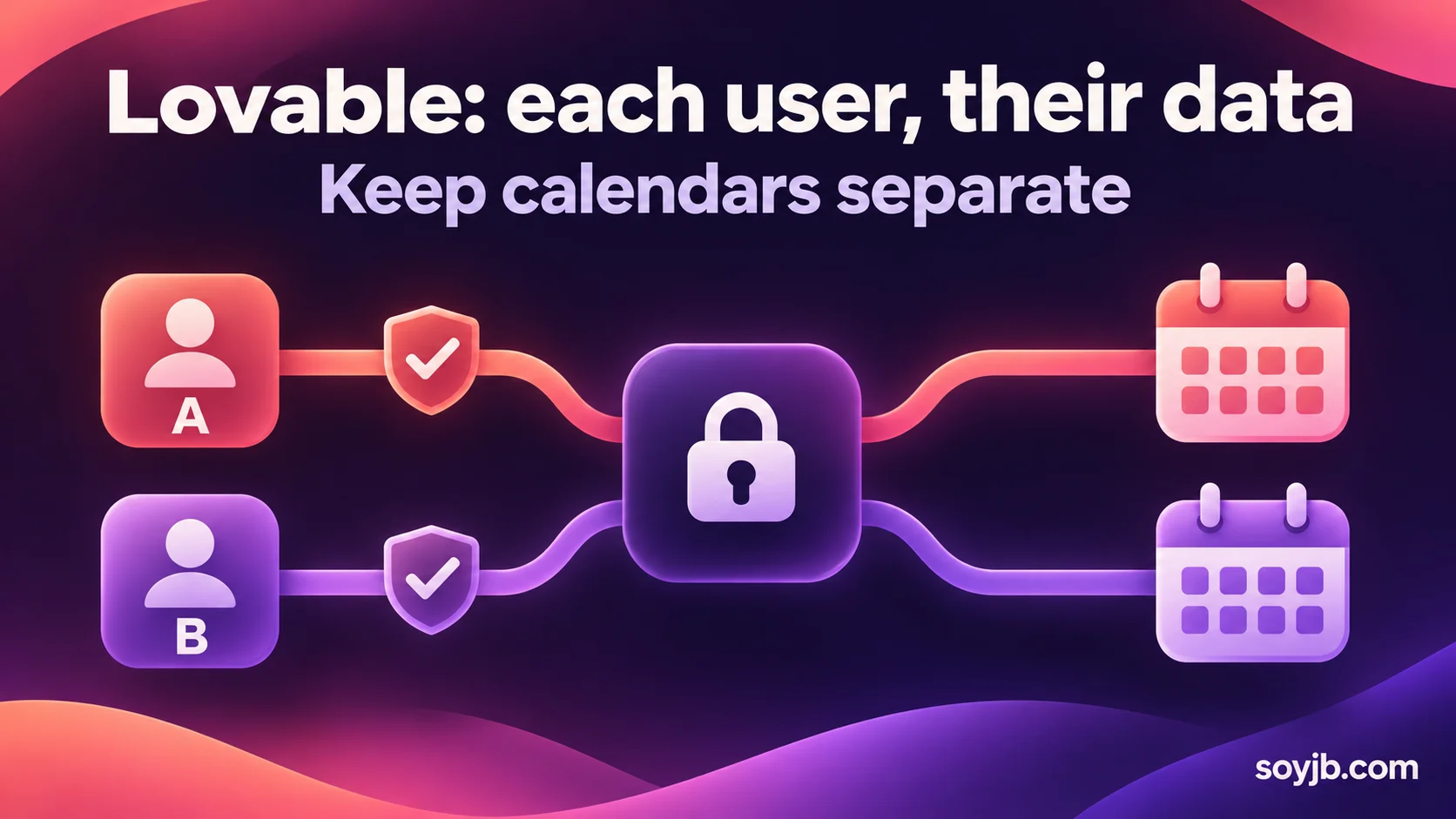
You build a scheduling dashboard in Lovable for five customers. You connect your Google Calendar, publish the app, and discover that everyone can see your schedule. The interface may look finished, but the connection is wrong: you used one shared account for a feature that should run with each person's account.
Lovable distinguishes standard connectors, which reuse one account, from app user connectors, where every end user authorizes their own account. Its official documentation explains the setup and recommends testing with two users so one request never reads the other's data. Here is a practical sequence for a calendar prototype.
Decide whose data the feature needs
A standard connector can make sense when one company Slack account sends all notifications. A personal calendar, inbox, or CRM view needs a per-user connection. With an app user connector, each person completes OAuth and Lovable's gateway applies that person's granted permissions. The provider tokens stay in the gateway rather than the generated app code.
Define the feature in one sentence: “Each signed-in user sees only their upcoming calendar events and can disconnect their account.” That gives you a scope boundary. A free/busy view does not need access to Gmail or Drive “just in case.” Request the narrowest permissions that support what the user can actually see and do. If you later add event creation, revisit the consent screen and the extra scope.
The setup path
- Register an OAuth app with the provider. For Google, configure consent and credentials. Use the callback URL shown in Lovable Connectors; the docs list
https://connector-gateway.lovable.dev/api/v1/app-users/oauth2/callback. Copy the current value exactly into the provider's allowed redirects. A mismatch causesredirect_uri_mismatch. - Configure the client in Connectors. Add the client ID and secret, decide who can use it, and link it to the correct project. The builder's own development connection is separate from the connections used by people in the published app.
- Identify the current user. In a public app, each visitor needs to sign in before connecting a personal calendar. Lovable supports built-in or custom authentication. Some Business and Enterprise workspace apps can instead reuse the signed-in member's workspace identity. Confirm which route fits your project.
- Ask for the connection UI in the project chat. Use the following prompt, then review the generated code and actual behavior. A prompt alone cannot prove isolation.
Build a "My calendar" dashboard in this app. Each authenticated user must
connect their own Google Calendar account through the configured app user
connector. Show only that person's upcoming events, never the project
builder's events or another user's. Add a disconnected state, a "Connect
Google Calendar" button, a clear reconnect message when access expires,
and a "Disconnect" control. Do not store event titles, descriptions, or
attendee details in the app database. Request only the permissions needed
to read the events shown. Before publishing, list the OAuth setup and
two-account tests that I must complete manually.
This is an implementation prompt, not a claim that SoyJB tested it in a Lovable account. Menu labels and behavior can vary by plan and project. Check the current Lovable documentation and test your own app.
Run a two-account test before inviting customers
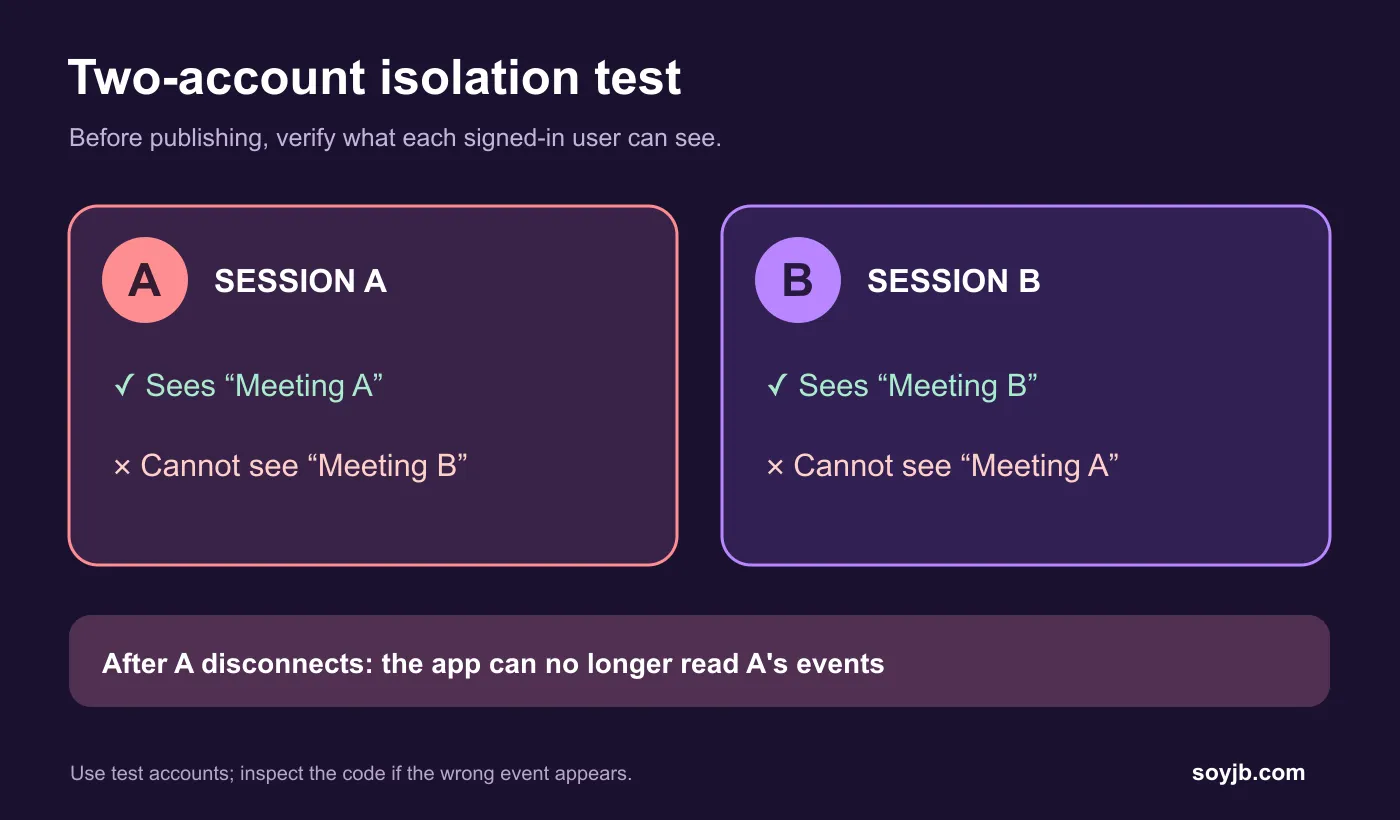
Create two test accounts with different events: A has “Meeting A” and B has “Meeting B.” Connect them separately. Session A should show only A's event, and session B only B's. Sign out, sign back in, and check again. Disconnect A and confirm the app can no longer fetch A's calendar. If the wrong event appears, stop the launch and inspect how the code identifies the current user to the gateway.
Test a failure too: revoke the provider permission for one account. The app should ask that person to reconnect instead of presenting stale data as current. Lovable documents an expired-credential error and an activity log for diagnosing failed requests. Use test identities, not real customer calendars.
Two limits that affect the design
Offline access. Lovable's documentation says clients created on Free and Pro have Offline access enabled and cannot disable it; Business and Enterprise default to disabled. A public app or one with its own authentication may require this setting. Treat it as an architecture decision: it lets an app act when the user is not signed in. It is separate from the scopes granted by Google, and you should be clear about when the app acts.
Copied data. The gateway applies source permissions to live Google requests. If you copy events into Lovable's own database, those source permissions do not automatically follow the copy. Lovable's technical explanation suggests avoiding sensitive persistence when live access is enough; another option is storing only IDs and non-sensitive metadata. Secure credentials do not replace your own access, deletion, and retention rules.
For an app used outside your organization, read Lovable's OAuth verification guide. Sensitive or restricted scopes can trigger provider review. Testing with a small group is not the same as receiving approval for a public rollout. Validate the idea with minimum permissions and two test accounts, then complete the provider's requirements before broad launch.