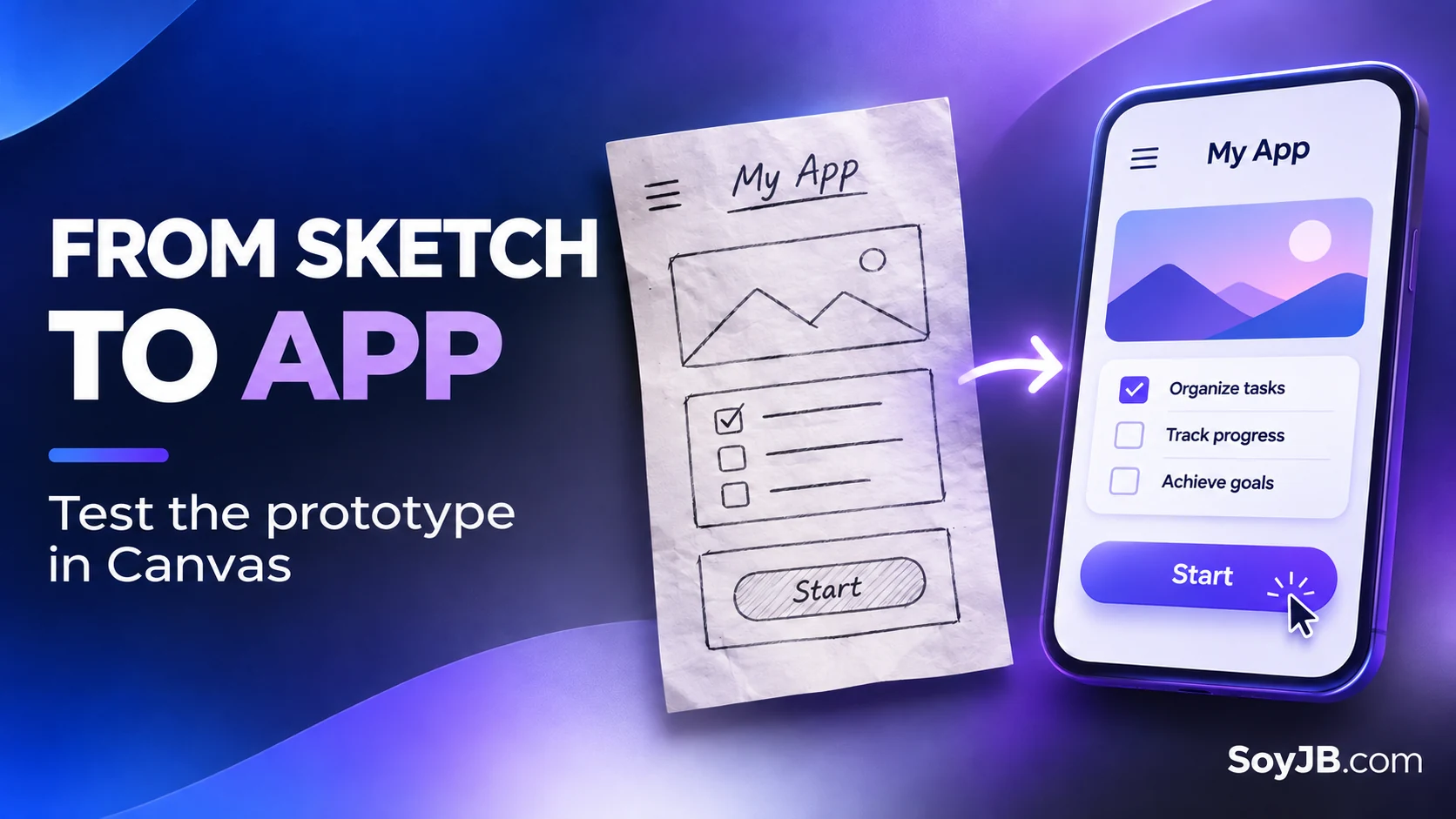
You think of a small app away from your desk. You sketch three checkboxes and a button on paper, then lose an hour in the editor choosing colors before testing whether the idea works. On November 5, 2026, Google described a shorter route: upload a photo of the sketch to Gemini, select Canvas, ask it to code the app, and try the preview. The benefit is reaching a first interaction sooner. A photo is not a finished product specification.
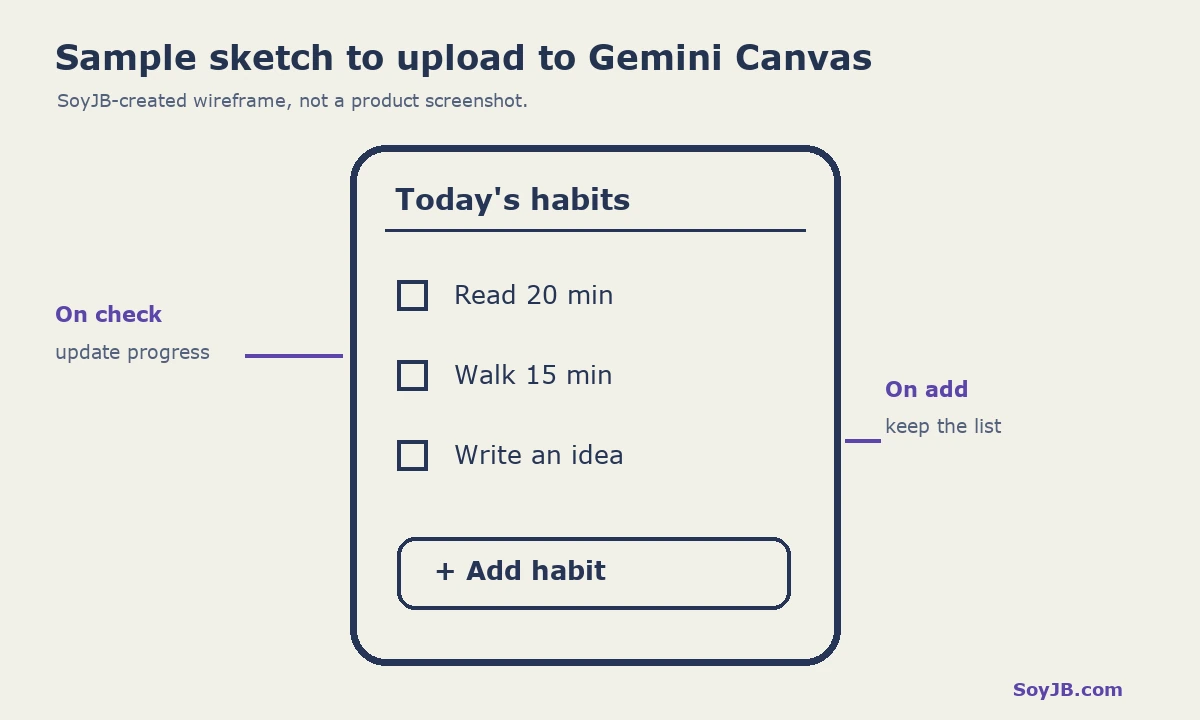
Let's use a one-screen habit tracker. The image below is a SoyJB-created sample sketch that you can save and use as input. It is neither a Gemini screenshot nor evidence that Gemini's output will match it exactly. The screen needs three habits, a checkbox for each, and a button to add another. That creates an observable test: if checking a box does not change progress, the prototype is not working yet.
Specify behavior the picture cannot show
An image conveys layout but does not fully define what happens when someone taps a control. Before uploading, write down the action, expected result, and state that should survive. In this example, checking a habit changes the counter, adding creates a new row, and reloading preserves the data in this browser. The last requirement asks for browser-local storage. It does not ask for a database, login, or synchronization across devices.
If you are sketching a real business flow, include the empty state, a failure case, and what appears after submission. A form drawing with no validation rules can become a polished interface that accepts impossible data. Use fictional data for a first prototype; keep customer photos, credentials, and private information out of the upload.
Open Canvas with a testable brief
- Sign in at Gemini and choose Canvas. Google's help page describes adding an image to the prompt.
- Save the sample sketch on this page, upload it, and paste the prompt below. If you use your own drawing, change the control names.
- Open the Canvas preview and run the checks in the next section before sharing it.
Turn this sketch into a one-screen web prototype.
Title: “Today's habits”. Show three sample habits.
Each checkbox toggles complete/incomplete and updates a visible counter.
“Add habit” asks for a name; reject empty names and duplicates.
Keep the list and completion state in this browser's localStorage.
Do not add login, payments, external APIs, or real user data.
Prioritize mobile layout, accessible labels, and visible keyboard focus.
Before calling it done, explain where state lives, what does not
persist outside this browser, and how to test every action.
The brief separates what the sketch depicts from what the app should do. It also limits scope: an agent may otherwise invent a backend or account flow. If Gemini misreads part of the image, use Select & ask on the relevant area or describe the correction in chat. Google documents that Canvas lets you inspect and edit code, view console output, and see recent changes. Existing code does not prove the feature runs without errors; open the console if a button seems unresponsive.
Run five checks before calling it an app
- Initial state: are all three habits visible and is the counter consistent?
- Interaction: check and uncheck one box; the counter should increase and decrease without duplicate events.
- Input: add a valid name, an empty one, and a duplicate. Each case needs a clear response.
- Persistence: reload and see whether the list and checks remain. If not, inspect the console and request a storage fix.
- Mobile and keyboard: check narrow width, tab order, labels, and contrast. A polished desktop preview is insufficient.
Record each result in four columns: action, expected, observed, fix. I am not claiming Gemini passed these five checks. I did not run the workflow in a SoyJB Gemini account. The sketch and prompt are reproducible inputs; the output must be checked in your own session. If two basic actions fail, narrow the request to one feature and retest before asking for AI or a backend.
When to move beyond Canvas
Canvas helps validate an interaction and show an idea to another person. If the app needs users, shared data, payments, or permissions, define the data model, authentication, access tests, and deployment separately. Do not treat localStorage as production storage for sensitive information. Sharing a demo does not establish reliability, policy compliance, or demand. Today's decision is smaller and measurable: does this screen deliver the intended flow with less friction than the paper sketch?
Sources and scope
Google, turning drawings into apps, November 5, 2026; Gemini Apps Help, Canvas and app editing. Reviewed November 11, 2026. Availability and usage limits can vary by account and region; check the controls shown in yours.