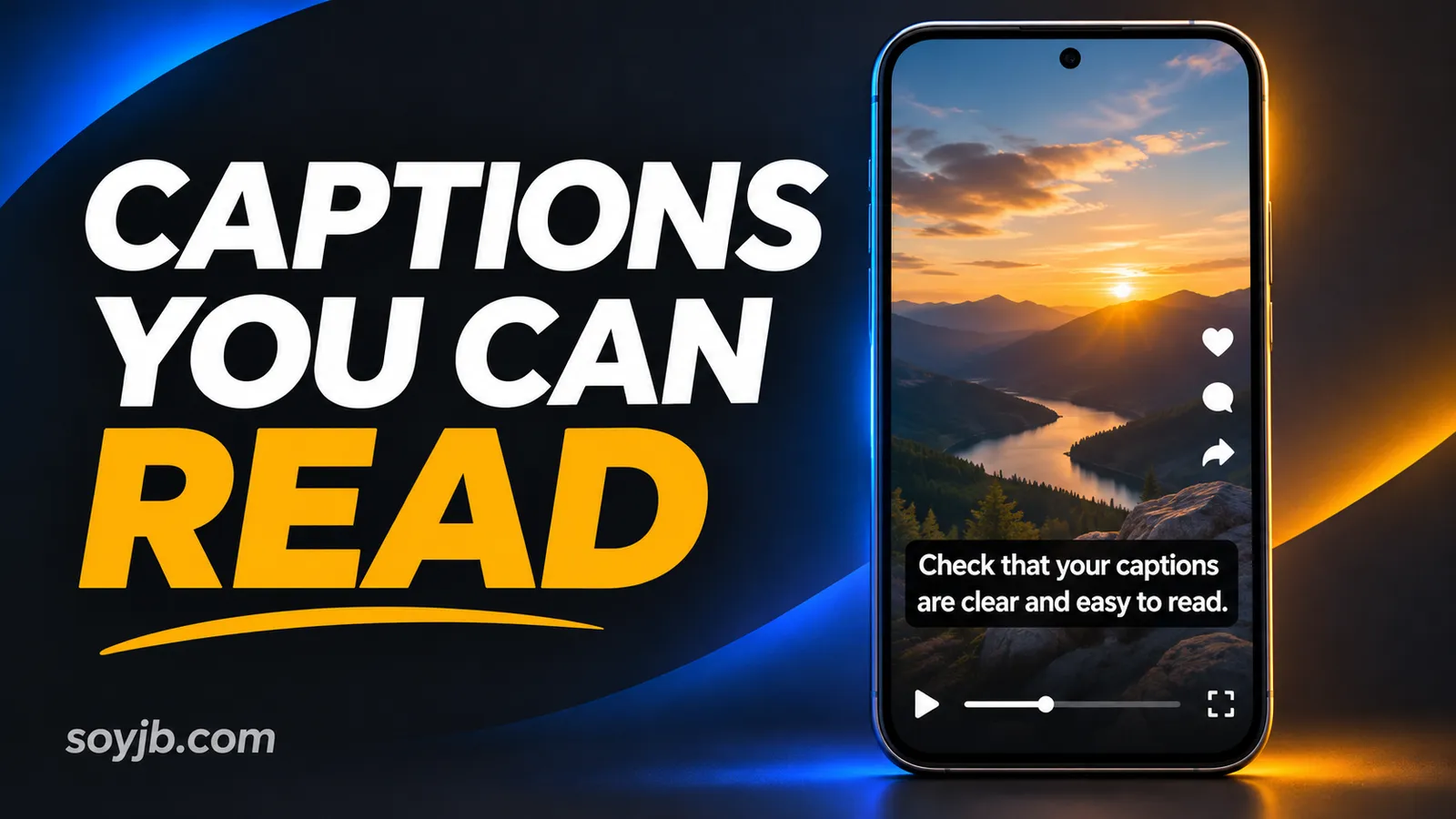
A product demo looks polished on a desktop editing timeline. On a phone, the last line of its captions sits under the player controls, a white word vanishes against a bright screen and an auto-caption turns a customer name into something else. The SRT can have perfectly valid timestamps while the published video remains hard to follow. This review tests what a viewer actually sees and hears at phone size.
YouTube says automatic captions can misrepresent speech because of accents, pronunciation and background noise, and asks creators to review them. The W3C explains the accessibility role of captions for prerecorded audio in video. For a creator, the immediate goal is that someone can understand the message with sound muted without having to hide the main action under text.
Choose a caption format deliberately
A selectable caption track can be turned on and, in some players, restyled by the viewer. YouTube documents controls for size, color and background. Burned-in captions are pixels in the video: they preserve a visual design across uploads, but the viewer cannot resize or hide them. When a platform supports a separate track, consider providing it as well as the designed video. Then check that the app does not show two caption layers at once. The published experience matters more than the timeline preview.
A five-minute phone review
- Check names, numbers and negations against the audio. A missing “not” reverses advice; a wrong product name undermines a demo. Include meaningful sound cues when they carry context. YouTube Studio lets you edit caption text and timing.
- View the export small. A font that looks generous on a monitor can be tiny on a phone. Pause at the longest lines. If you need to zoom to read them, shorten the phrase or change the design.
- Inspect bright and busy scenes. White letters that work on a dark wall may disappear over a pale product screen. A solid or sufficiently opaque backing helps keep contrast stable. The W3C's 4.5:1 reference for normal text is a useful design target; one screenshot does not certify every frame of a moving video.
- Preview in the destination app. Show the title, reactions, progress bar and other controls. Do not assume one fixed “safe zone” works everywhere. Move the captions until they neither collide with controls nor cover the subject.
- Play once muted and once with sound. Muted playback tests whether the idea survives without speech. Audio playback reveals lines that appear too early or too late. Ask one person where they had to replay a sentence.
Export one phone-size frame with FFmpeg
For pacing, compare a specific spoken sentence with what appears on screen. “Open settings, enable access, and confirm your email” can become two natural units: “Enable access in settings” and “Then confirm your email.” Keep each unit visible during the matching speech and avoid leaving one word stranded on its own line. A single reading-speed rule will not fit every audience. Technical names, numbers and viewers reading in a second language may need more time. Ask someone to read the export once on their own phone without pausing. If they have to rewind, rewrite the line or extend its display time.
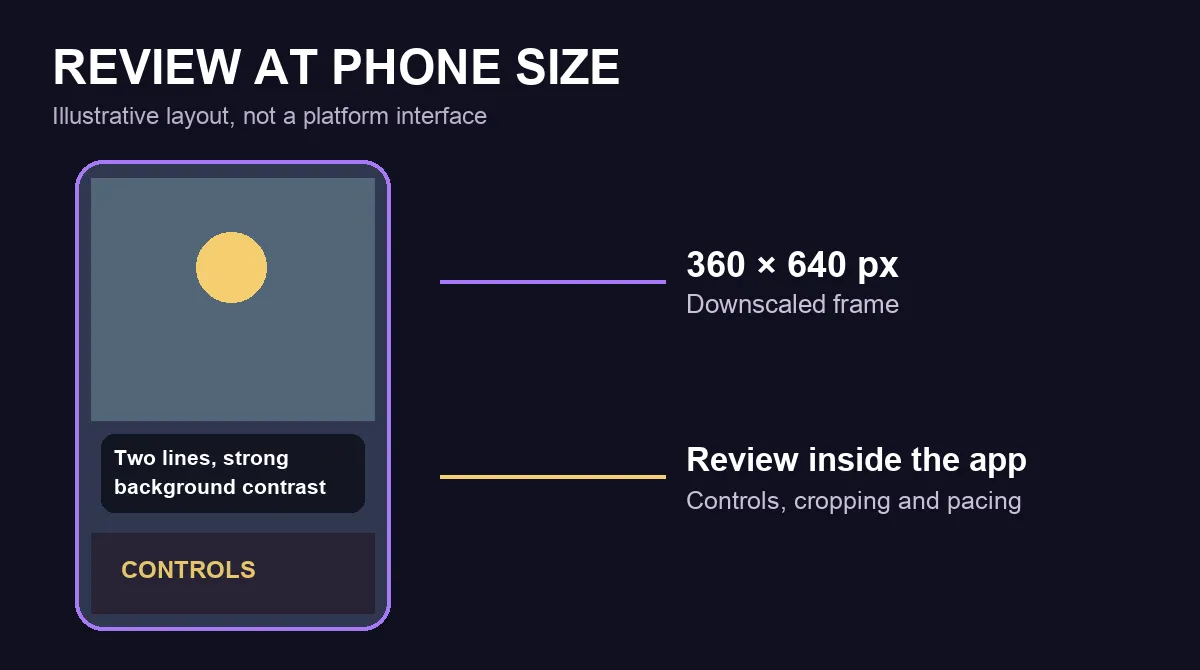
Use this command to capture second three of a local video at 360 pixels wide. FFmpeg preserves the aspect ratio and chooses an even height. Change the timestamp to a crowded caption or a visual transition:
ffmpeg -hide_banner -loglevel error -ss 00:00:03 -i video.mp4 -frames:v 1 -vf scale=360:-2 -y phone-review.pngWe ran the filter on a synthetic 720 × 1280 vertical clip and got a 360 × 640 PNG. That verifies the command and dimensions, not the readability of a real production clip. Capture several moments because a caption can work on one scene and fail on the next. If you publish to several apps, repeat the preview in each app: the PNG cannot represent every control or the final platform compression.
Ship when someone can follow the video muted on their phone, names and figures match the audio, captions stay visible across scene changes and no app controls cover them. If one check fails, fix the export or track before posting. A technically valid caption file cannot compensate for text that the audience cannot read.
Sources: YouTube automatic captions; YouTube caption editing; YouTube caption controls; W3C prerecorded captions; W3C contrast; FFmpeg scale filter.