Your video thumbnail looks right, but the headline says “Build your AI ap.” One missing letter should not force you to recreate the photograph, lighting, and layout. On November 10, 2026, Adobe said Edit text became generally available in Firefly. It detects lines inside an image and lets you replace or remove them while trying to preserve the rest of the composition. For a creator, the useful test is simple: fix one line and decide whether the file is still ready to publish. Source: Adobe MAX announcement.
Use it for a flattened image, not every design change
Adobe’s product guide says Firefly scans the upload, places a dotted box around each detected text line, and tries to match the original type style. You edit one line at a time. Pressing Apply generates a new image; it does not turn the poster into a fully editable typography file or promise pixel-perfect preservation.
If you still have the layered Photoshop, Canva, or other design project, editing its original text layer usually gives you more control. Firefly’s feature is useful when only a final JPG or PNG remains and the change is small. A longer replacement is less predictable: Adobe says the detected box cannot be moved or realigned and recommends replacement text of similar length.
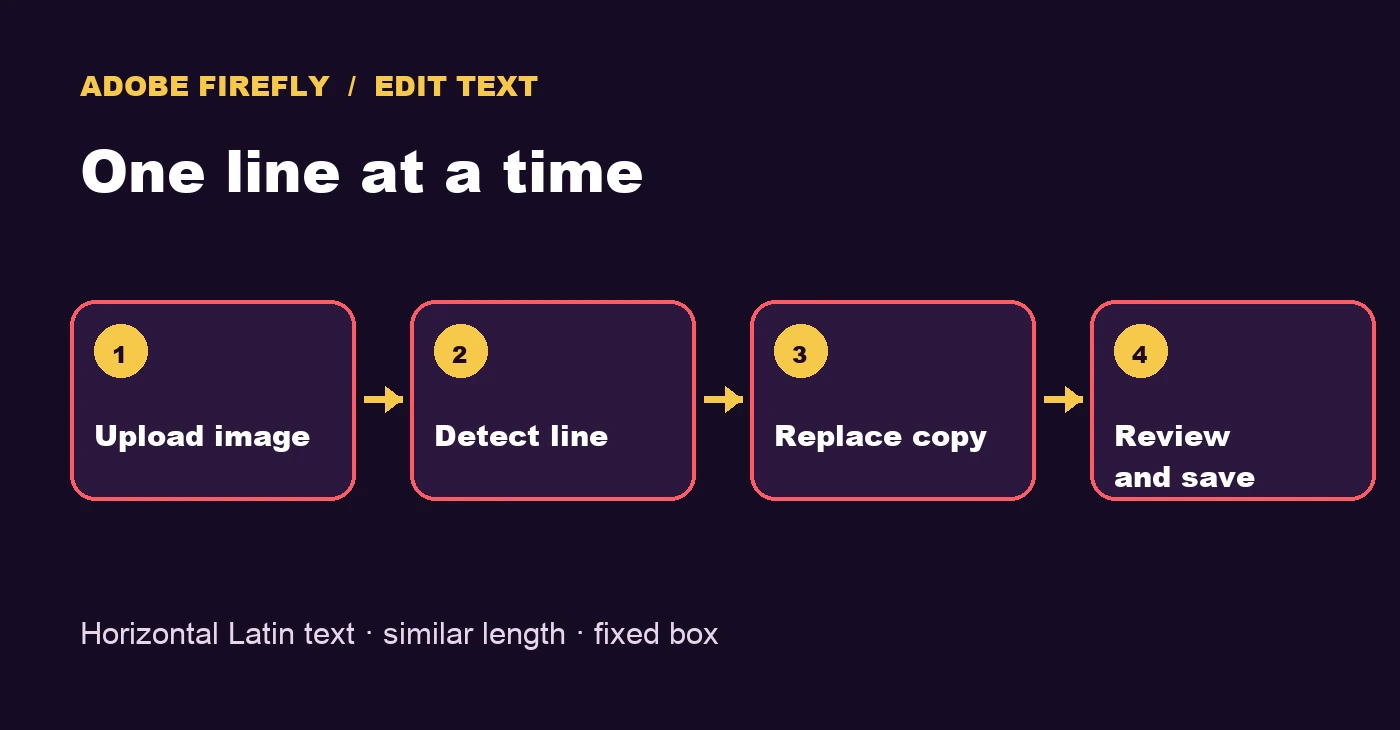
Fix one thumbnail headline
- Keep the original. Make a copy of a thumbnail you own. Choose an image with clear, horizontal Latin text for your first attempt. Avoid starting with a client asset you cannot regenerate.
- Open Firefly. From the home screen choose Image > Edit image, then upload from your device or Adobe cloud storage. This is the path in Adobe’s current guide.
- Select Edit text. The tool is on the left. Wait for the dotted text boxes. If it misses your headline, try a higher-contrast source or return to your original design file instead of assuming the selection worked.
- Replace one line. Click the right box and change
Build your AI aptoBuild your AI app. Leave other lines alone during this pass. If your plan offers a model choice in the action bar, inspect it before applying. - Apply and compare. Press Apply, then check the new file against your source: exact spelling, comparable type, intact background, enough contrast, and readability at mobile size. Repeat for another line only after reviewing the first.
- Download it. Adobe warns that the edit is not automatically saved in Generation history. Closing the page without downloading can lose your work.
A five-minute acceptance check
Seeing the new letters is only the first check. Zoom to 100% around the edited box and its edges: hair, shadows, texture, and nearby graphics can reveal unwanted changes. Then shrink the thumbnail to roughly 320 pixels wide. If the headline becomes hard to read, the background shifts, phantom letters remain, or a brand element changes, reject that output and correct the original design manually. Save both files so the comparison is real.
Do not treat this one-line tool as an automatic localization workflow. A Spanish headline may be considerably longer than its English source, while Firefly fixes the detected box in place. When the new language requires different line breaks or hierarchy, edit a layered design. SoyJB has a separate Canva Brush workflow for cover variants, with its own access limits and review steps. Firefly Edit text is strongest for a small correction in a flattened asset.
Access and limitations
Adobe lists Edit text as generally available in Firefly in its November 10 announcement. Particular model choices can depend on your Creative Cloud plan. Adobe’s compatibility table shows the text-editing tool in both desktop and mobile browsers. It works best on clear, horizontal Latin characters; non-Latin scripts, emoji, rotated or heavily stylized 3D letters, and overlapping characters may not be recognized. Results vary with the image and lettering.
This guide follows Adobe’s documented procedure and adds a review protocol. We did not run an Adobe account test or measure success rates. The practical decision: test a short correction on a copy of your own flattened thumbnail, publish only after a visual comparison, and use the layered source for larger changes.