Your video about the AI app you built is ready, but the thumbnail is still a generic “AI” label over a glowing background. Adobe's Firefly now includes Generate thumbnail among its Quick Actions: a guided route to a first cover. The harder decision is yours: which image tells a viewer what the video actually contains in one second?
Adobe announced the expanded Firefly on November 10, 2026 and said Quick Actions are available. Its help page, updated the same day, lists Generate thumbnail. That page does not prescribe a fixed set of fields for the action, so your account's guided interface may differ. We have not generated a thumbnail inside an Adobe account or measured click-through results.
When to generate, and when to edit
SoyJB's separate Edit Text guide covers correcting a word in an existing image. This workflow begins with your video's message and creates two visual concepts to compare. If your existing thumbnail is already strong and only has a typo, edit it instead of starting again.
Quick Actions package tasks that would otherwise make you find several tools. Adobe also lists background removal, captions, and upscaling. Availability does not mean every generation is free: check your account's generative credit allowance before making several variants. Costs can depend on the feature and plan.
Define the promise before opening Firefly
A thumbnail should not reproduce a long video title. For a video called “I built an AI app and found three launch problems,” the visual fact is an app being reviewed, not a futuristic robot. Choose one defensible promise such as “3 problems before launch.” If the video does not actually show three problems, fix the promise first. Keep a real screenshot of your app if you want a product reference; do not ask AI to fabricate a screen and present it as the shipped interface.
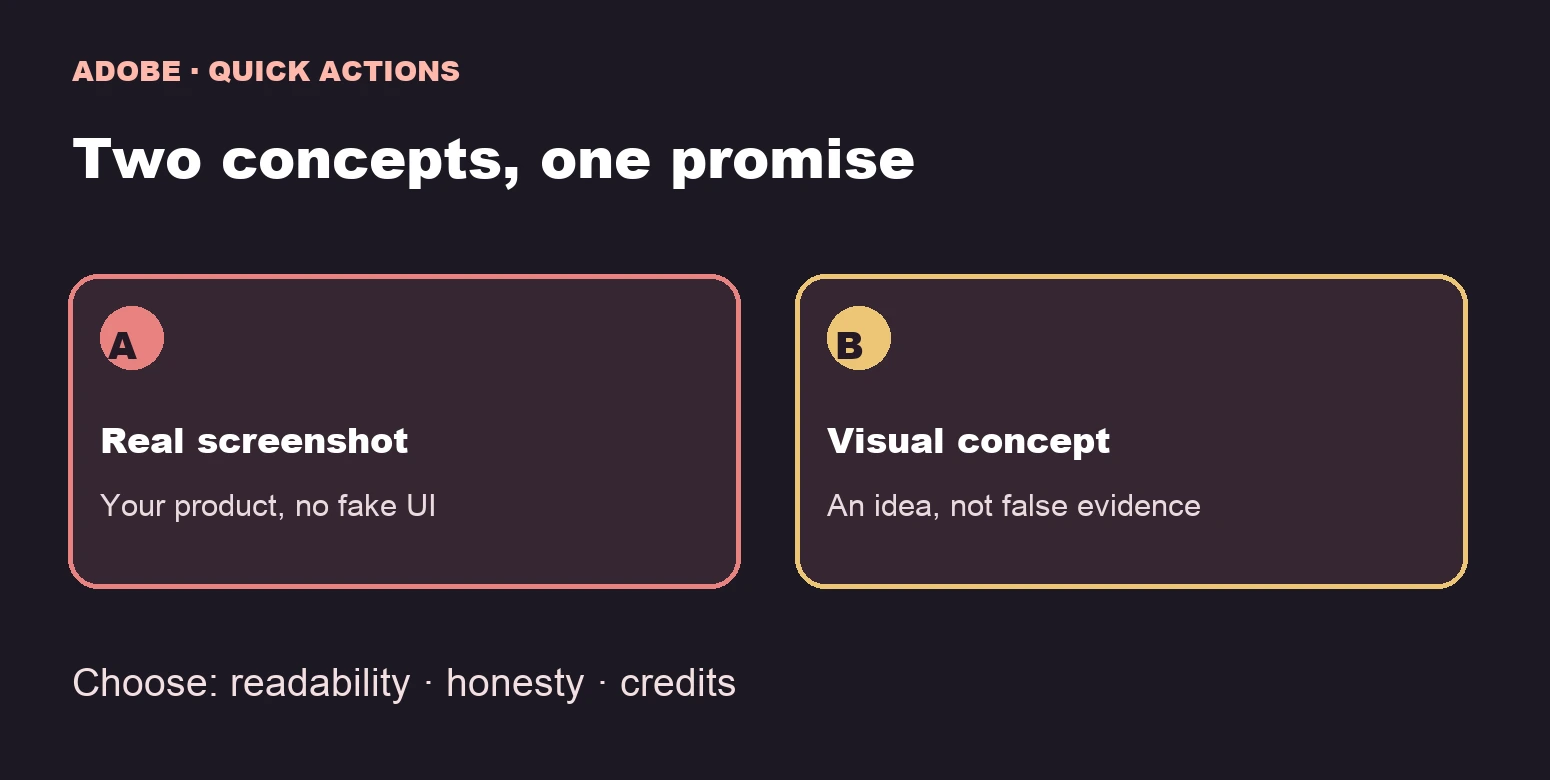
Write two different composition hypotheses. Version A uses your actual screenshot, highlights a visible issue, and has short copy. Version B uses a clearly conceptual illustration of a launch review, without pretending to show your product. You are comparing which explains the video better, not running a statistically valid click test.
Try the Generate thumbnail Quick Action
- Open Quick Actions in Firefly's left navigation. Adobe says this is where the complete workflow list lives.
- Find Generate thumbnail. If you cannot see it, check your account's availability rather than relying on another person's screenshot of the interface.
- Provide the video topic, target format, and a visual reference if the guided workflow accepts one. If the fields differ, keep the same objective: a thumbnail for this specific video.
- Produce two concepts, changing the main composition while keeping the message constant. Changing copy and imagery together makes the comparison harder to interpret.
- Inspect both at a small phone-like size. Check readable text, contrast, crop, and whether the visual implies a feature your product does not have.
Video: I built an AI app and found three issues before launch.
Thumbnail goal: show a real review, not an inflated promise.
Format: 16:9 for YouTube, up to five words of copy, with safe margins.
Concept A: use my authentic product screenshot as a reference; highlight a real issue without altering the interface.
Concept B: a clearly conceptual illustration of an app review, with no fake screens or people.
Do not invent logos, metrics, product capabilities, or testimonials.
Leave room for me to set final text manually if generated lettering is wrong.
This is a reusable creative brief, not a guaranteed sequence of UI fields. If generated lettering is inaccurate, add the final title in an editor or generate the image without text. If only one word needs correction later, Adobe's Edit Text tool may be the quicker path where available.
Review before publishing
View each thumbnail at roughly 10–15% of its full size and ask someone what they think the video will teach. If their answer does not match the content, change the cover. Verify rights for screenshots, photos, and marks. If a real person is central, use an identified photo with appropriate permission, not a synthetic portrait that looks documentary. Export the chosen version, pair it with the video title, and keep the brief for future iterations.
A good Quick Action saves production steps; the count of generated images proves little. Record minutes spent, credits used, and manual fixes. Publish when the image is legible, honest, and distinct from your other thumbnails. Only after real impressions arrive can you compare its performance with similar videos.