You already have a cover with the right image, colors and headline space. You only need a second version for another audience. Regenerating the whole image may disturb the parts that worked. Canva Brush is aimed at a different job: editing an existing design instead of rebuilding it. Canva announced it on October 29, 2026 and made supported edits available through Canva AI for Pro subscribers. Source: Canva’s announcement.
What Brush does, and how it differs from Craft
Canva Craft begins with an idea and produces a new image. We have a separate cover-generation test for Craft. Brush starts with an existing design: it can change one element or request edits across multiple pages. Canva says the resulting elements remain editable. That gives creators a clear choice: use Craft when you need a new visual; test Brush when the layout already works and you need a variation.
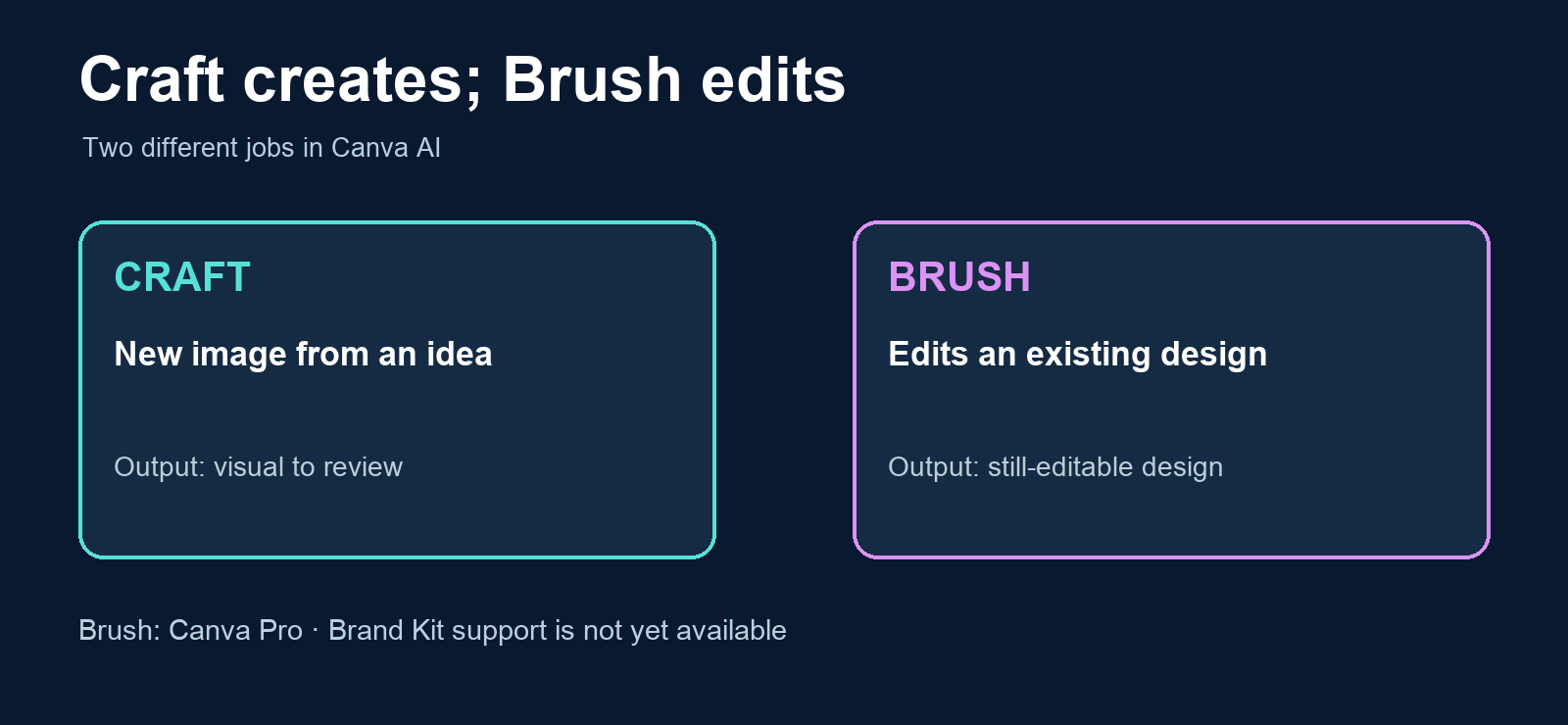
Canva lists access for Pro subscribers through Canva AI, for edits the first version of Brush supports. Brand Kit support, attachment references and improvements for image-heavy designs are planned, not available yet. That is why an on-brand result should be checked rather than assumed. Canva’s published speed and editing-cost figures come from its own internal tests; they are not a verified reduction in subscription price.
A useful test: localized covers without swapping languages
This is a proposed workflow based on Canva’s documentation, not a claim that I tested Brush in a Pro account. Start with an editable cover design, approved source copy and Pro access. Duplicate the design. In Canva AI, open or attach that copy and choose Brush from the model dropdown, as Canva instructs.
- Lock the intent. Write down what must stay: the illustration, authorized logo, headline area, margins and aspect ratio.
- Request one edit. Replace only the English headline, then inspect whether the other pieces stayed put.
- Create the second language. Duplicate the original again and request exact Spanish copy. Do not attach a Spanish cover to an English article or vice versa.
- Review at mobile size. Check spelling, line breaks, contrast, crop, hierarchy and editability before exporting.
Paste this prompt into Canva AI while working on a copy of the design. Replace the brackets and run each language variant separately:
Edit this existing design. Do not rebuild it.
Goal: create a cover about [TOPIC] in [LANGUAGE].
Replace only the headline with: “[EXACT HEADLINE]”.
Preserve the main image, palette, margins, and logo placement.
Do not add new claims, numbers, or elements.
Keep every element editable.
If the headline does not fit, adjust its size or line break without changing the composition.
Before finishing, tell me which elements you changed.
For example, use AI app security, English, and the exact headline “Protect your AI app”. Run a second edit on a fresh copy with Spanish and «Protege tu app con IA». The expected result is two comparable compositions with correctly localized text, not a language-swapped pair. Review both exports yourself; a prompt alone cannot guarantee visual accuracy.
How to tell whether it saves real work
Try three common changes on the same cover: headline replacement, color update and format adaptation. Time each version until the asset is ready to publish, rather than stopping at the first output. Record manual corrections and whether the key elements remain editable. If Brush moves the brand mark, alters the main image or misses exact copy, use Canva’s normal editor for that step. If it reliably preserves structure while reducing revisions, add it to your variation workflow. A launch announcement alone is not a reason to replace your whole design process.
Canva describes the access path in its Brush announcement. The localized-cover procedure above is an evaluation method; its performance on a specific bilingual cover remains unverified here.