You're making a carousel on an iPad: sketch an icon, retouch the lead photo, then lay out the pages. That often means exporting between apps and discovering too late that a layer is no longer editable. Canva announced Affinity for iPad on November 3, 2026, now available in the App Store. It brings sketching, vector work, photo editing, and page layout into one .af file. The useful question for an independent creator is what works free and whether the optional AI tools earn their cost.
What the iPad app brings together
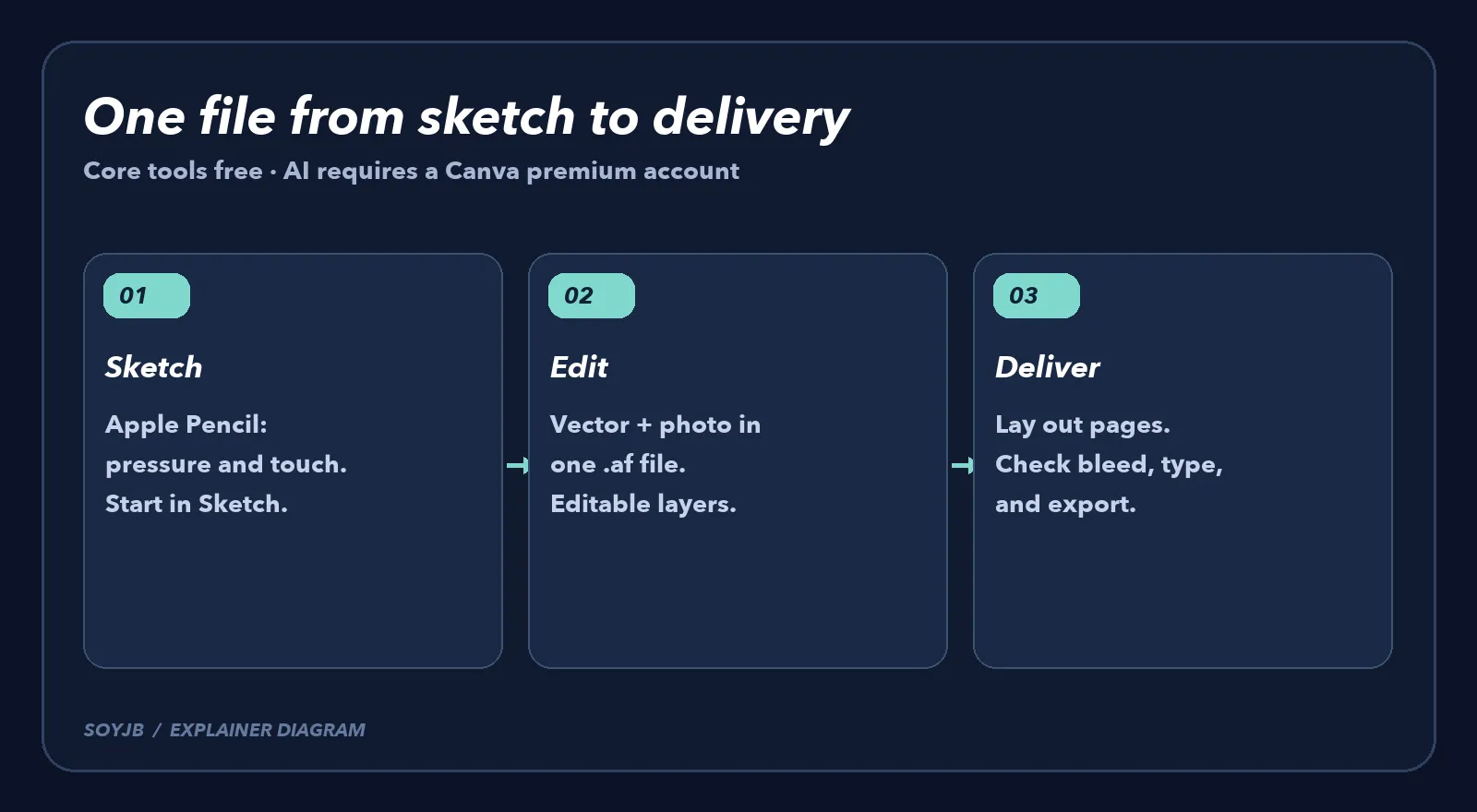
The app combines Sketch, vector tools, pixel editing, and multi-page layout. Canva says it is designed around Apple Pencil and touch while retaining the professional capabilities of desktop Affinity. You can begin with a sketch, turn marks into editable shapes, refine a photo, and place both into several pages without making separate exported files at each handoff. Canva says major file types are supported; if a client or print shop needs a specific format, verify its import and export before migrating an entire project.
Core sketch, vector, pixel, and layout tools are free for individuals. You need a free Canva account to use the app. Canva AI Studio features inside Affinity require a Canva premium account. Canva highlights Generative Expand, blur reduction, noise cleanup, and turning a flat image into editable layers. Those examples do not mean every retouching feature is free, nor do they prove AI output is print-ready without inspection.
A 30-minute creator test
Pick something you would actually publish: the cover and two slides of a product carousel, for example. A generic doodle will tell you less about whether this replaces part of your working setup. Use the following as a decision checklist:
- Set the output first. Note the dimensions for your channel and whether the client needs PNG, PDF, or an editable file. Do not assume the
.afproject itself is your deliverable. - Sketch with Pencil or touch. Draw an element you expect to revise. Change its weight or color afterward. If the stroke is no longer editable in the way your work requires, you have found a real constraint.
- Move into vector and photo work. Adjust the icon's curves and nodes, add a photo you own, and try a selection or mask. Keep it in the same project. Check whether you can revise both elements without exporting and rebuilding the composition.
- Lay out and export two slides. Inspect typography, margins, and readability at phone size. Open the exported file outside Affinity to catch missing elements, color surprises, or clipped text.
If you already have Canva premium, repeat one meaningful step with AI: extend your own photo to a vertical canvas or reduce blur on an image you can inspect closely. Compare it with a manual edit; examine edges, hands, lettering, and scene continuity. If you do not have premium, the free creative core is enough to test the end-to-end workflow. Pay for AI only after identifying the step it improves.
When I would use it
Affinity for iPad looks most relevant when you create heavily on a tablet and want illustration, retouching, and editorial layout in one editable project. A simple template editor may remain faster for a one-off social graphic. For print production, a client-mandated format, or high-volume automation, compatibility and export results matter more than the announcement.
Canva confirms App Store availability and the free/premium split. We did not test the app on Joseph's iPad or benchmark it against desktop Affinity. A sensible first move is to install it with a free account, finish one real asset, and then decide whether any premium AI function materially changes your output. One verified delivery beats a long list of impressive effects.