You need a 30-second TikTok for a local café. You have four real shots of the place but want one attractive transition. Canva offers Magic Video and Video Clip, both labeled as AI video tools, yet they solve opposite problems. Choosing the right one saves generations and keeps a business video from looking like a documentary of a place it never actually filmed.
Canva's current Magic Video help page says the tool assembles a video of up to 60 seconds from 1–10 clips or photos you upload. It applies templates, transitions, and music and is included in all Canva plans, including Free, subject to usage limits. Video Clip instead generates a new scene from a prompt: eight seconds with sound or six without. Its help page says prompts are supported in English only and audio in a clip with sound cannot be manually changed. Check actual access and allowance in your account before generating.
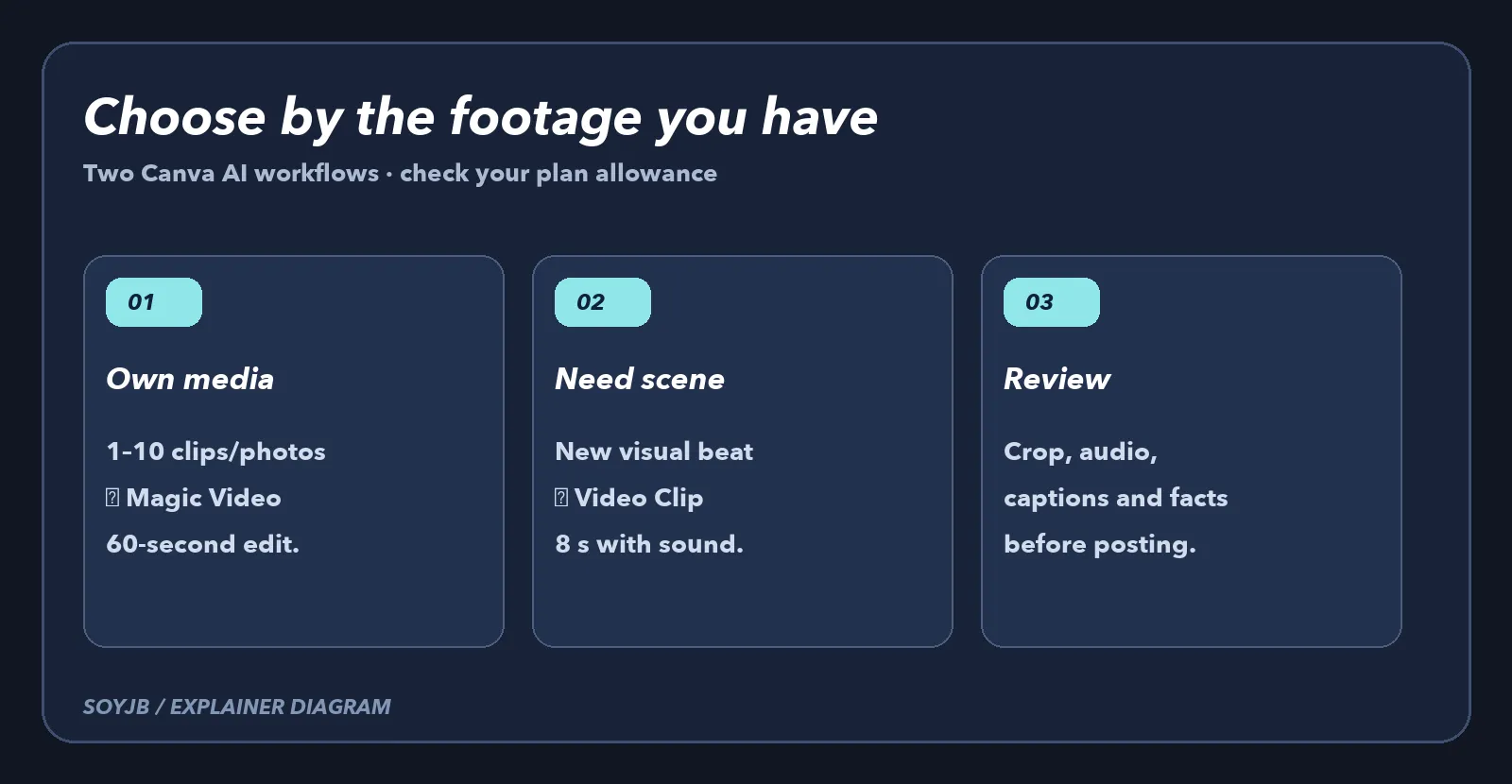
Start with Magic Video when you own footage
For the café, pick a storefront shot, a permitted barista shot, the real product, and one close-up. In Canva Home → Video, choose a vertical design, open Templates, and upload 1–10 photos or clips. Try a prompt like:
Make a vertical video from these four real café shots. Open on the actual product, show the preparation, and end on the storefront. Keep clear, fast cuts and room for captions. Do not invent prices, awards, or customer testimonials. Keep hands and the product inside the frame.Magic Video can produce 60 seconds, so open the result in the editor and trim it to your intended 30. Inspect framing carefully: Canva says automatic reframing is not supported yet, so a person or product may be cropped poorly. Uploaded videos also must be under ten minutes long. Template availability and music licensing can vary by region. Watch the full export with sound before posting.
Use Video Clip for one new visual beat
Video Clip should not replace real footage of the business. It can provide clearly creative B-roll: steam, texture, or atmosphere that makes no factual claim about the café. From Home → Canva AI → Video Clip, try this English prompt:
Eight-second cinematic close-up of steam rising from an unbranded ceramic coffee cup on a wooden table. Warm morning light, slow camera push-in, central subject safe for a vertical crop, natural cafe ambience, no people, no spoken words, no text or logos.The generated result may be horizontal. When you place it in a vertical TikTok, confirm that the cup and steam remain visible. Canva lets you open the clip in Video Editor for trimming and text; do not assume you can rewrite its generated audio inside the clip. If the sound clashes with your voiceover, choose a silent generation or skip it. Add your own narration and captions, and label synthetic footage if viewers might mistake it for the real café.
A quick decision for creators
- Must the video show a real product, person, or place? Use your footage in Magic Video and inspect every shot.
- Need one non-factual visual beat? Try a short Video Clip and keep it separate from claims about the business.
- Need a 30-second post? Neither output is a finished post: trim it, build a hook, and add an honest call to action.
- No Video Clip access or remaining allowance? Do not promise the feature is available; work with your footage and check account limits.
Compare both workflows against the same goal: make one version from your four real shots and a second version that replaces only the transition with a synthetic clip. Record editing time, whether the product is recognizable on a phone screen, and whether viewers could confuse the B-roll with the actual location. You do not have to publish both. Keep the version that tells the story clearly without making a false visual claim.
SoyJB did not generate these videos in a Canva account for this article. Durations, input types, supported prompt language, and limitations come from Canva's official help pages. The prompts are examples for readers to try with their own material and review. The useful distinction is that Magic Video edits material you already have, while Video Clip creates a new scene. Do not use a synthetic scene as visual evidence of something you never filmed.