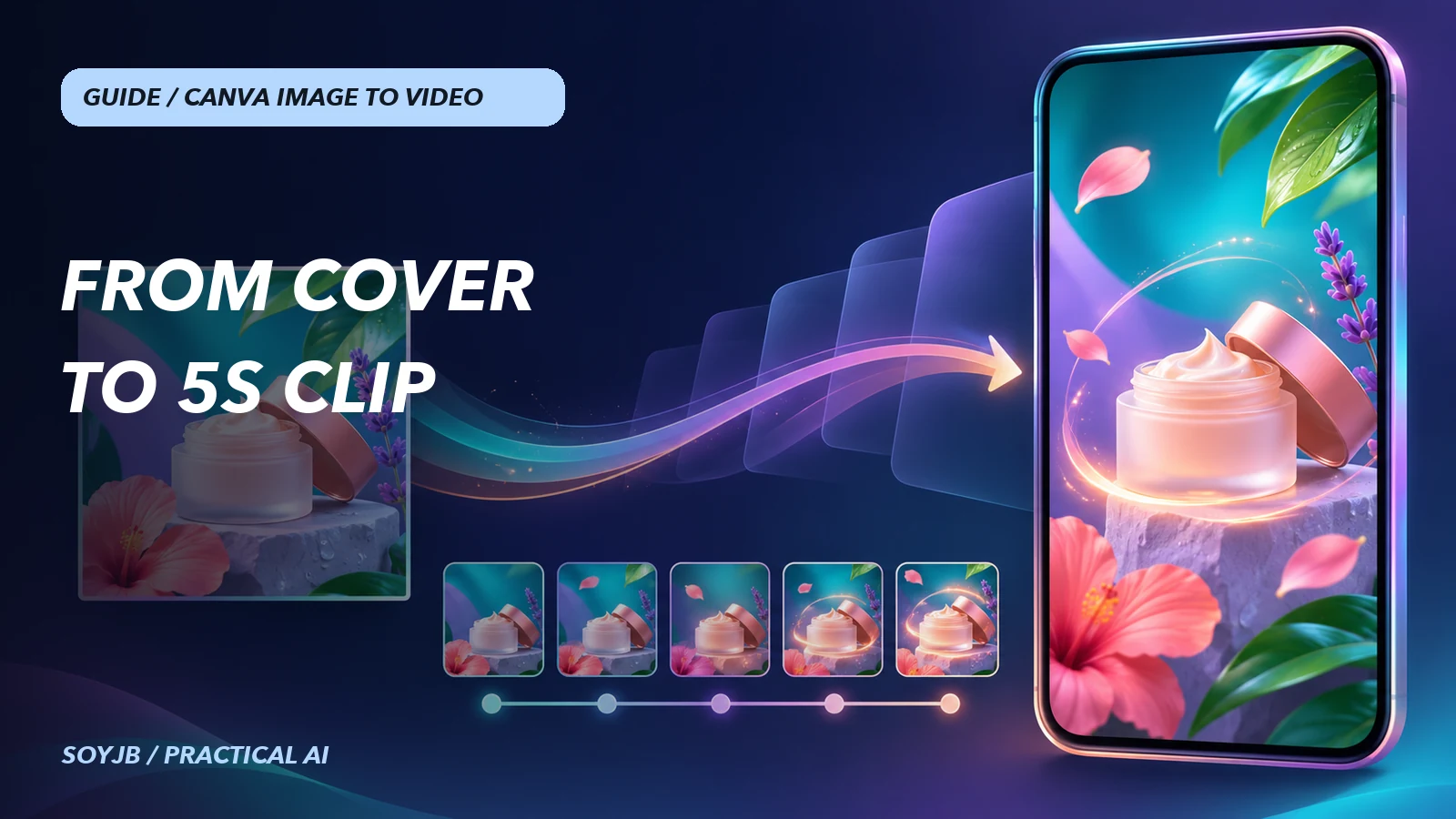
Your product cover already works as a still image, but the first second of a Reel feels like a frozen slide. Canva's Image to Video can give that image a short motion clip. The easy mistake is generating five variants until something moves. A better use is to decide what motion helps viewers understand the product, then check that AI has not altered the text, logo, or shape of the object.
Canva's official guide describes subtle animation of an existing image. It is different from Magic Media video, which generates from a text prompt. Here you start from a photo or design you already selected, and the output keeps its aspect ratio. That makes it a useful experiment for an approved blog cover, product shot, or first social slide.
Prepare an image that needs little invention
Canva recommends a source of at least 256 × 224 pixels and an aspect ratio no wider or taller than 5:1. Transparent backgrounds and premium stock media are not supported in this feature. Be careful with faces: Canva says facial animation is not fully supported. For a product graphic, leave breathing room around the edges so a gentle motion does not cut off the subject. That last point is SoyJB's editorial advice, not a Canva technical requirement.
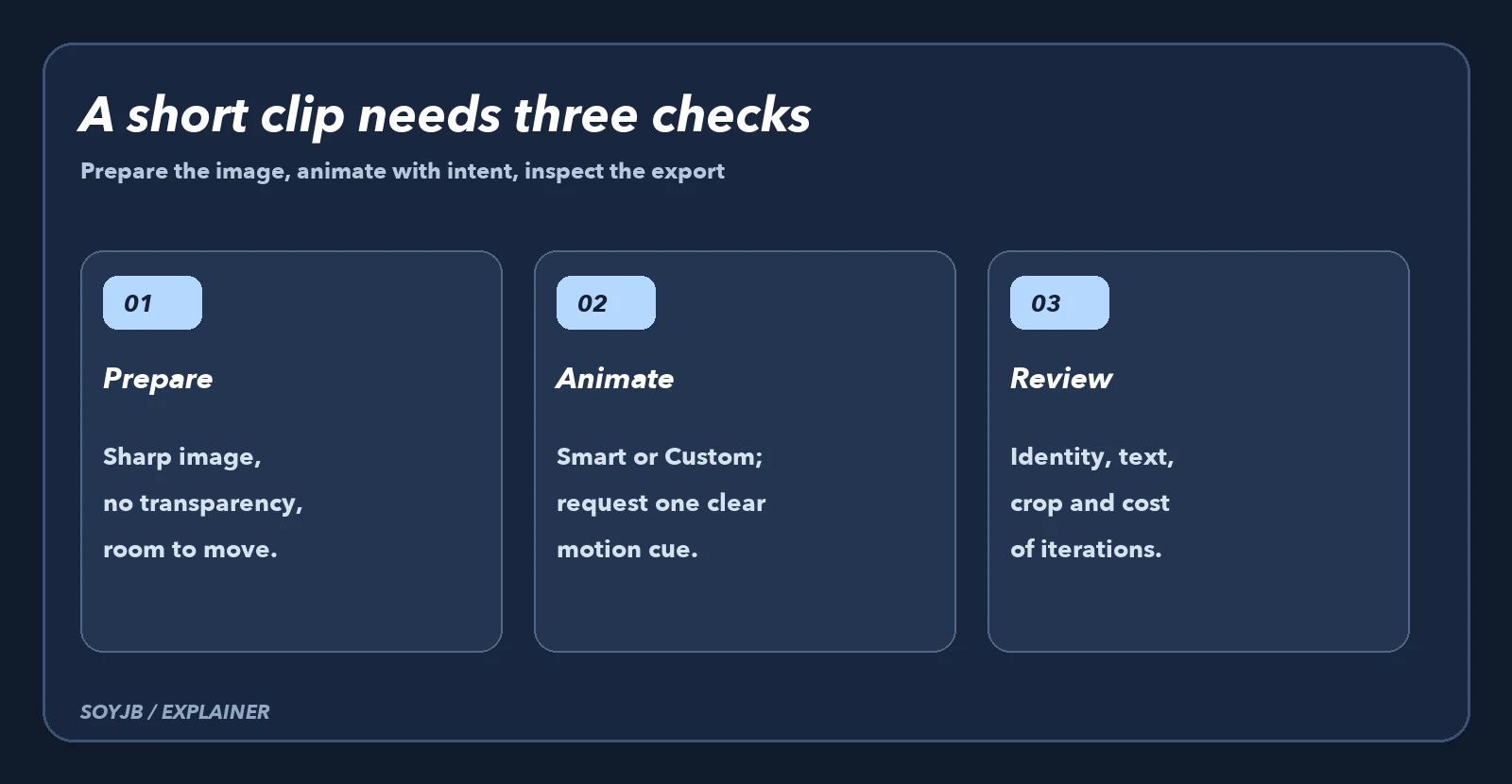
Repeatable test: one product cover to one clip
- Open a Canva design, select the image, and choose Edit → Tools → Image to Video. If the option is missing, check that the source is neither transparent nor premium media, and that your account has AI usage available.
- Generate a Smart version first. It applies default motion. Treat it as a control: does it make the first second clearer, or distract from the message?
- Try Custom with a bounded instruction:
Very gentle camera push toward the product over five seconds. Keep the framing, colors, object shape, and any text unchanged. Add no people or extra objects.This is a SoyJB prompt suggestion, not a guarantee that Canva will obey every word. - Compare both versions muted. In the first second, can a viewer tell what is offered? Is the product still recognizable? Is text readable on a phone? Are there warped letters, broken edges, or motion that implies a product capability you do not have?
- Keep the variant that passes those checks. Add audio in the editor if needed; Image to Video generates no audio. Export for the target channel and inspect the actual file before publishing.
Canva says the button generates a five-second video, although some current generations may be only three seconds. You cannot set a different duration inside this feature, but you can combine clips in the editor. For a 15-second ad, one possible sequence is an animated cover, a real product demonstration, and a closing call to action. The demonstration should be an authentic capture, not AI motion that makes an unbuilt feature appear real.
Access, iteration cost, and limitations
The help page calls this a premium feature and also says Free-plan users can use it while monthly AI allowance remains. It does not give a per-generation price on that page; check the usage shown in your account before producing many variants. It may be disabled by default for Canva Education student users and is unavailable in China. Access is separate from quality: a warped-text clip should not ship just because you have quota left.
To avoid spending attempts without learning, define three acceptance conditions first: clear message, intact identity, and useful motion. Generate one Smart and one Custom version, and record which condition each fails. If both fail, improve the source image or animate it manually. SoyJB did not run a Canva generation for this guide. The interface steps and limits come from Canva's help page; the comparison protocol is ours.
Source: Canva Help Center: Transform your image into a video, reviewed Nov 7, 2026. This is a practical guide to an existing capability, not an announcement made on November 7.