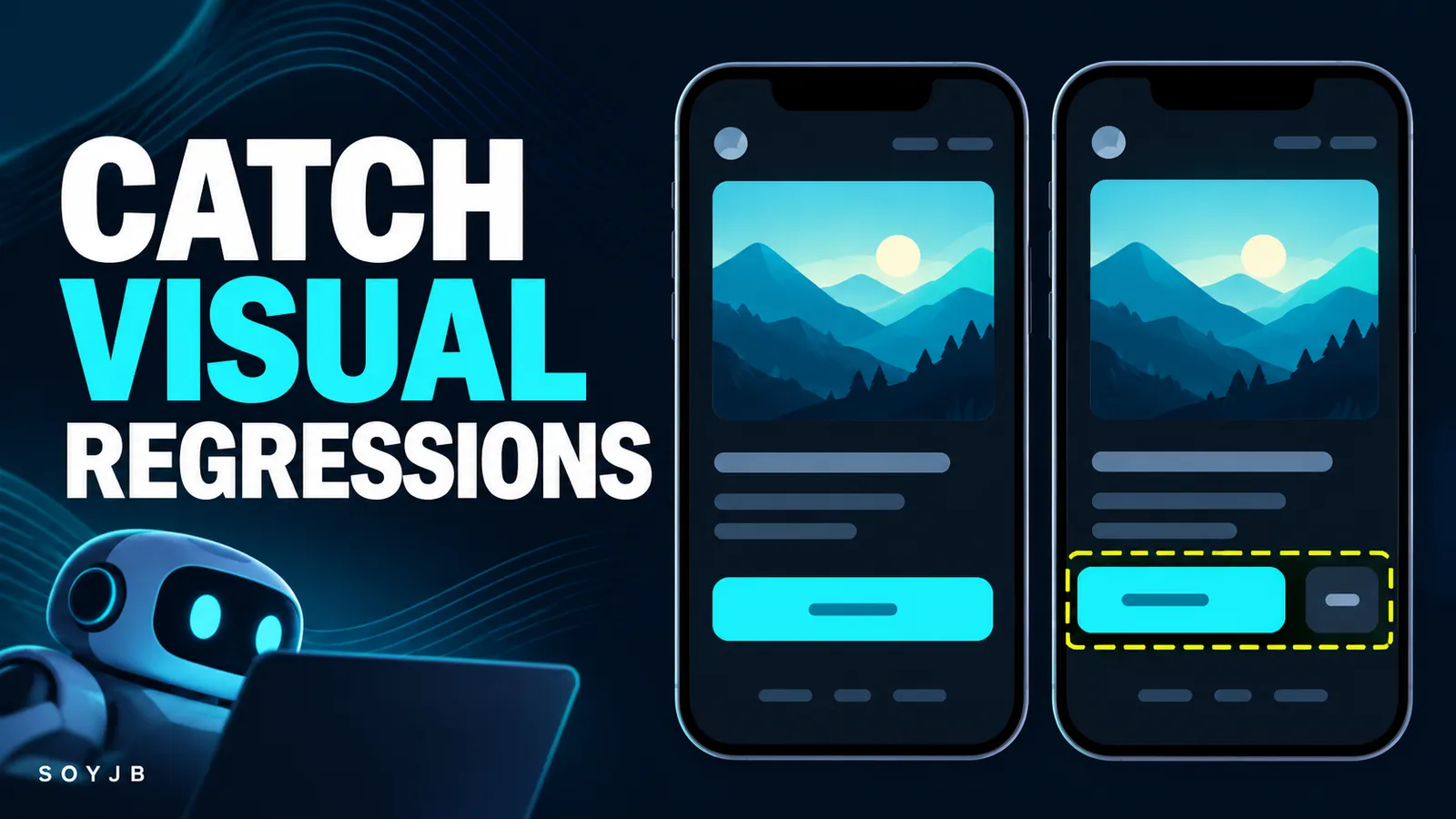
You ask an AI coding agent to change the copy on your landing page button. The code diff is tiny, but on a phone the button wraps onto two lines and covers the price. The app builds and its functional test passes; the screen your customer sees is still broken. Visual comparison tests are for this class of mistake: they compare the same page state before and after a change.
Playwright documents toHaveScreenshot() for exactly that. The first run saves a reference image; later runs compare a new screenshot with it. It helps when Cursor, Claude Code, v0, or another assistant changes styles faster than you can remember every layout. The test is an alert to inspect differences, not an automated design opinion.
Choose one critical page and make it stable
Start with a page tied to a user decision, such as a landing page with a clear call to action, and use a fixed mobile viewport. Keep data consistent. A rotating testimonial, live clock, or random hero image can cause noise. Playwright warns that rendering can vary across operating systems, browser versions, fonts, hardware, and settings. Generate and compare baselines in a consistent environment, ideally the same CI image.
If your project does not already use Playwright Test, install it and Chromium:
npm install --save-dev @playwright/test
npx playwright install chromium
Start your local app and replace the sample URL with your own. Save this file as tests/landing-visual.spec.js:
const { test, expect } = require('@playwright/test');

test('mobile landing keeps its layout', async ({ page }) => {
  await page.setViewportSize({ width: 390, height: 844 });
  await page.goto('http://localhost:3000/');
  await expect(page.getByRole('main')).toBeVisible();
  await expect(page).toHaveScreenshot('landing-mobile.png');
});
With the app running, execute npx playwright test tests/landing-visual.spec.js. On the first run, Playwright creates the baseline. Confirm it captured the right page, then commit it with the test. Run the test a second time without changes; it should match. Now intentionally change the button width or a margin and see whether the assertion reports a difference. That second step proves the check is sensitive to a real change in your app.
Interpret a failure instead of accepting it blindly
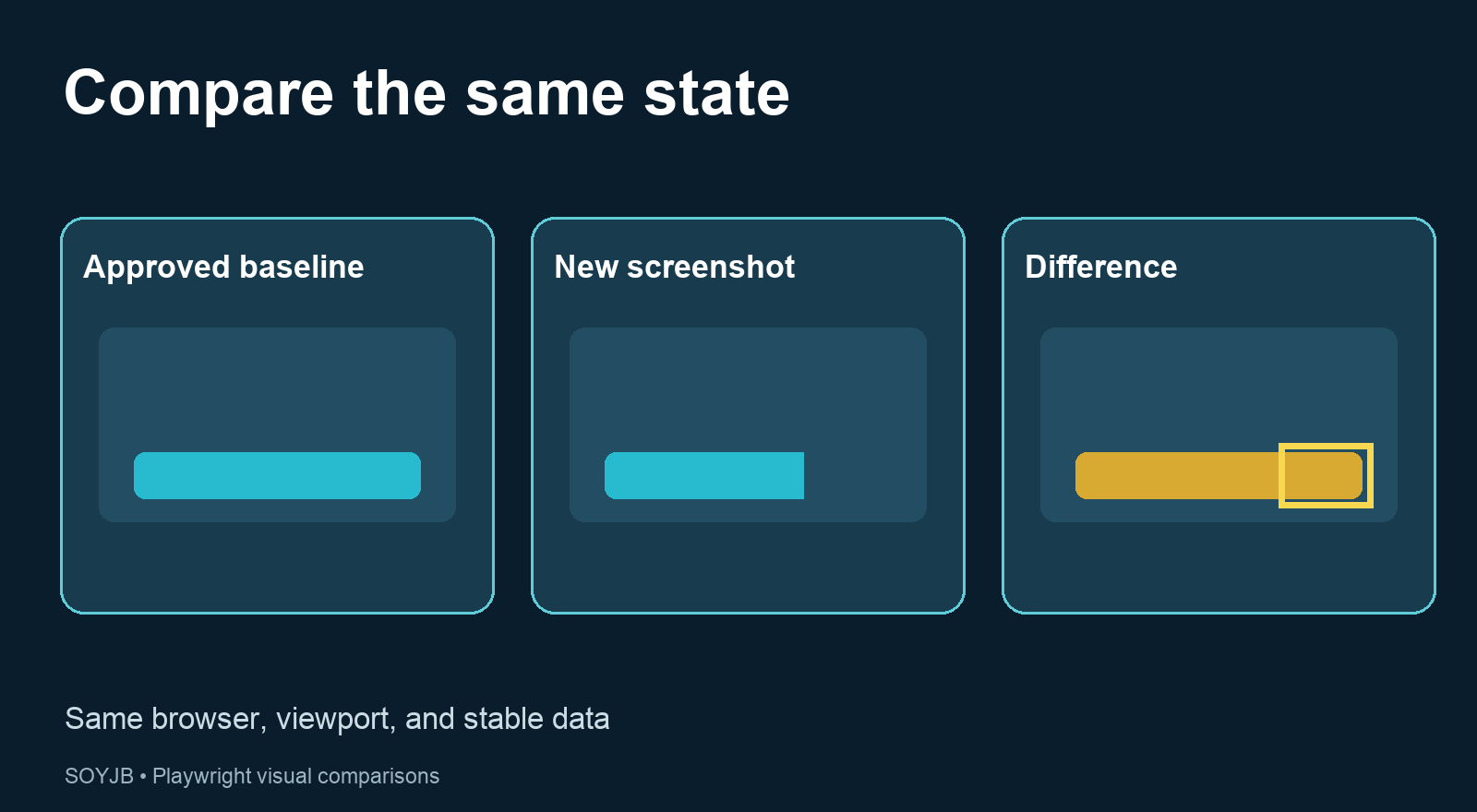
Open Playwright's report and inspect the expected image, actual screenshot, and difference. Its UI Mode provides a slider for comparing images. Decide whether the visual change was intended. If it was, review the new composition as a product decision and update the baseline with npx playwright test --update-snapshots. Automatically approving every new screenshot would turn the test into busywork.
If the change was unintentional, give the agent the visual diff and a precise instruction: “At a 390×844 viewport, the landing button wraps and covers the price. Fix only that layout, keep the button action, and show me the new screenshot plus the code diff.” Then rerun the functional test and try the page on a phone. Matching screenshots cannot prove that interactions work.
Control noise without hiding regressions
Playwright disables animations by default for screenshot assertions. For volatile content, prefer stable test data or a temporary screenshot stylesheet through stylePath. The framework also allows a threshold or maxDiffPixels, but change those only after you understand the differences. A generous tolerance could hide the exact moved button you meant to catch.
This guide was not executed against your repository. The snippet follows Playwright's documented API and requires you to adapt the URL, selector, and test environment. Start with one critical screen, verify that a deliberate layout change makes the test fail, and review every new baseline as a product change. That lets an AI assistant edit quickly while visual review remains evidence-based.
Primary sources: Playwright visual comparisons; Playwright UI Mode. Checked November 2, 2026.