Your coding agent is building a landing page and needs to read a brief, draft three headline options and save a sample image. It could add a Google SDK integration for every step, even though the task may be a one-off experiment. On October 27, 2026, Google released the Gemini API CLI in beta: a command-line client for calling Gemini from scripts, CI and coding agents that already have shell access. The useful question is whether this lighter interface fits the job.
An API client, not a second coding agent
Google's official guide names the executable gemini-api. It is stateless by default: each command calls the Interactions API and returns text, metadata or a file path. It can generate text and media, analyze files and launch Gemini managed agents. Google distinguishes it from the interactive @google/gemini-cli coding agent. Nor is it a replacement for the Google GenAI SDK when Gemini is a feature inside your application backend.
For someone building with Claude Code, Codex, Cursor or another agent with shell access, a command is easier to insert into a temporary workflow than a new application dependency. Media commands write their files to disk and print paths instead of filling an agent's context with base64. But the CLI still needs an API key, spending controls and a decision about which local files may be sent to Google.
Try it outside your production project
Install a pinned version from the official releases using the instructions for your operating system. Google calls this an open-source beta and warns of breaking changes between minor versions, so pin a release in CI. Put GEMINI_API_KEY in your environment's secret store; do not commit it or paste it into an article screenshot.
Once the CLI is installed, use a scratch directory and preview a harmless request:
gemini-api --help
gemini-api generate "Suggest three clear headlines for a notes app." --dry-run -o json
The documented --dry-run checks inputs and previews the request without sending the generation call. Inspect the chosen model, prompt and any attached files. When the preview looks right and your API key is configured, remove the flag for a real API response:
gemini-api generate "Suggest three clear headlines for a notes app." --stream=false -o json
The result should be API output in JSON, not an automatic edit to your source tree. The guide also shows file analysis with gemini-api analyze -i ./brief.pdf "Summarize the requirements". Use a synthetic or approved document and verify the summary against the source. These commands come from Google's documentation; I have not made a paid call or tested the binary in Joseph's account for this article.
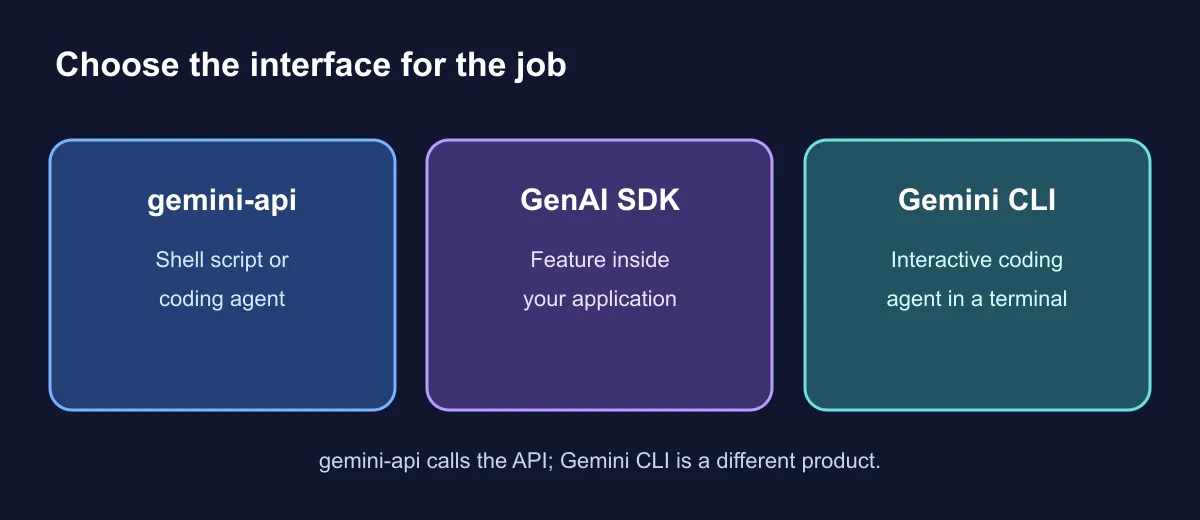
Choose the right interface
gemini-api: a shell agent or CI job needs a bounded Gemini call, media file or analysis step.- Google GenAI SDK: Gemini belongs inside your application and needs integrated authentication, error handling, tests and data flow.
- Interactive Gemini CLI: you want to work with a coding agent in a terminal. It is a different product.
The API CLI also exposes --schema to inspect request options, --agent-mode for structured errors and distinct exit codes: 0 for success, 2 for invalid usage and 3 for authentication. A script can use those signals to fail visibly instead of claiming it completed a task it never ran.
Limits that matter in automation
The beta uses the Interactions API, so check request storage settings before processing third-party information. Inline -i files have a documented 14 MB raw-data cap; larger files need the Files API and its separate lifecycle. Bidirectional WebSockets are not supported by this CLI, so real-time voice and video belong with the SDKs and Live API. If a publishing workflow generates media, account for output cost and rights before making it automatic.
My suggested experiment is deliberately small: a disposable folder, a synthetic brief and one --dry-run. If the command and output fit your workflow, add a real call with a pinned version and measured cost. If you need persistent state or product logic, start with the SDK instead.