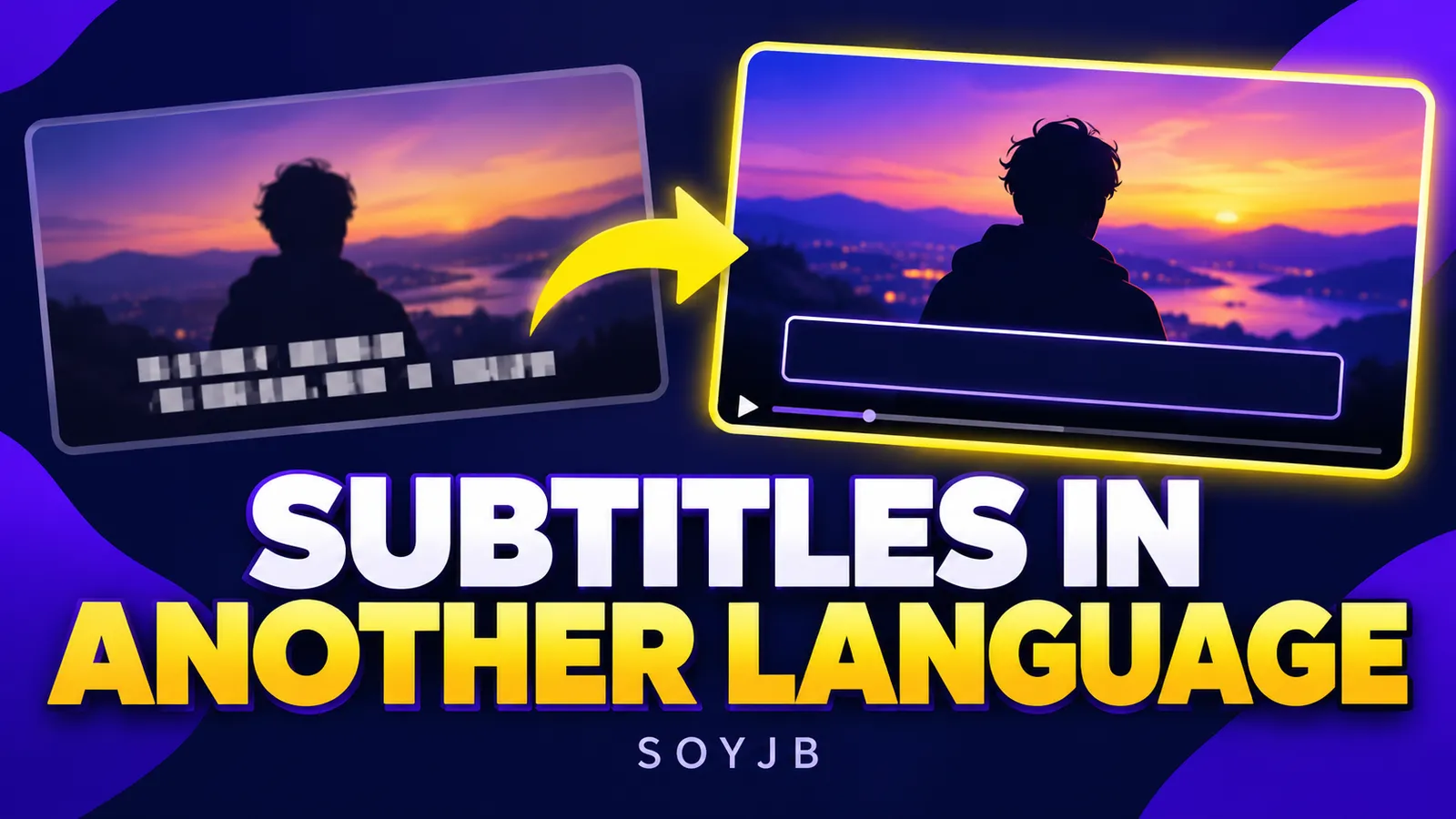
You recorded a short video in English and now want a Spanish-speaking audience to understand it. The copy on your phone already has English captions burned into the picture. Adding a Spanish line on top creates two competing layers. Before asking an AI tool to “translate the video,” answer one technical question: are the original captions a selectable track, or are they pixels in the video itself?
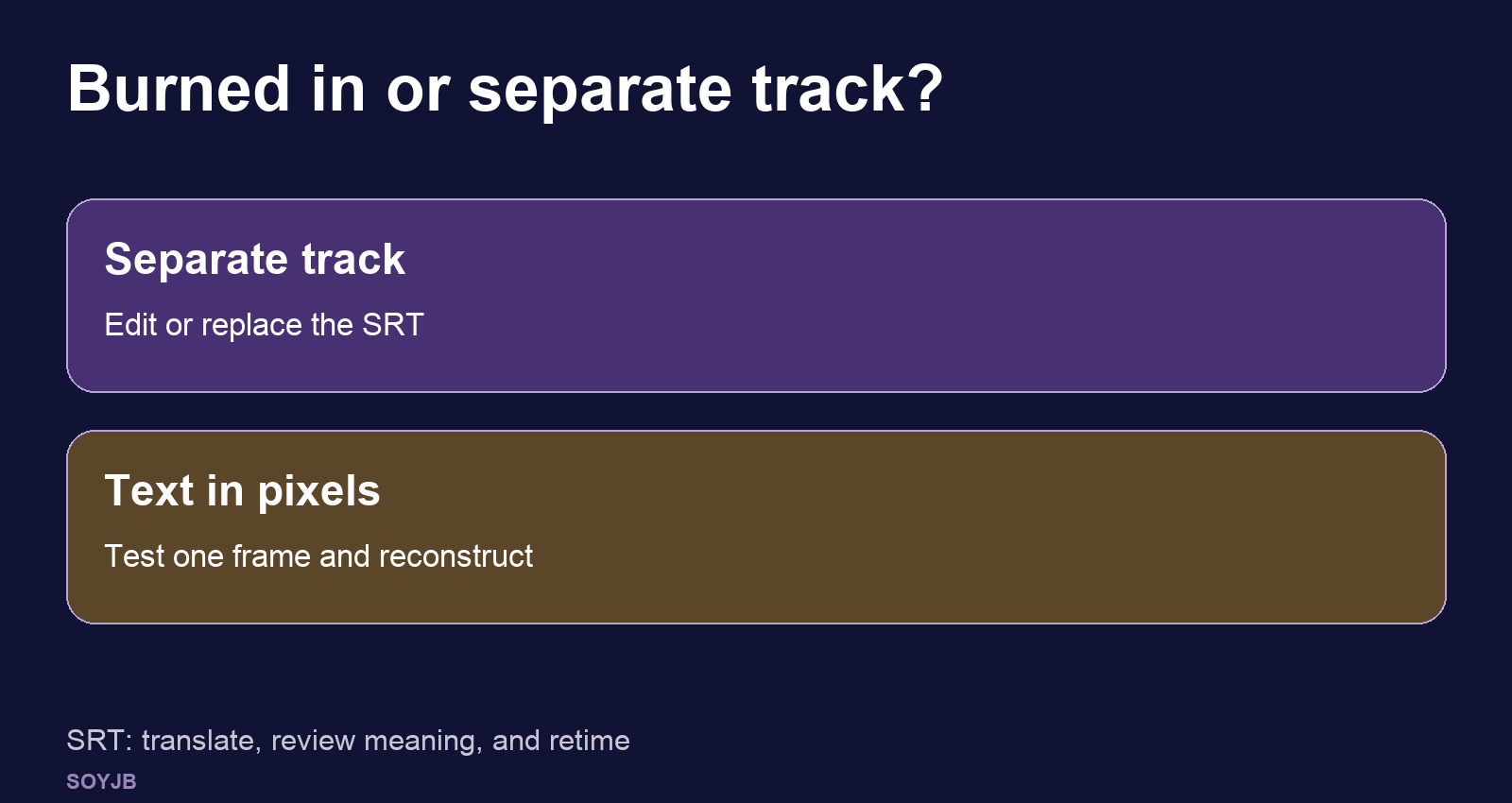
The answer determines the workflow. YouTube Studio lets you add and edit separate caption tracks, according to YouTube's help page. If viewers can turn the old captions off, or you still have the uncaptained master file, do not use AI to erase anything. Start from the clean file and add a new track. If the words are embedded in the image and that is the only copy you have, removing them means reconstructing the covered pixels.
Test one frame before processing the whole clip
For your own videos or material you have permission to edit, SoyJB Remove Subtitles is designed for burned-in captions. The product page lists MP4, MOV, and WebM, up to five minutes with a GPU or three without, 1080p and 500 MB. It processes in the browser and offers a test on one frame. Select the caption area and inspect that frame before running the full video. Choose a difficult moment with a face, keyboard, or moving detail behind the text.
The tool reconstructs the covered area; it cannot recover original pixels that no longer exist in the file. Its page says white or yellow letters with a dark outline work best in letter-detection mode, while caption boxes or unusual styling may need a whole-band mode that removes more of the picture. If the preview looks smeared, adjust the selection or return to the source project. Do not promise an invisible repair for every scene.
Transcribe the spoken language, then translate
Keep the original voice. SoyJB Audio to Text can produce text and a timed .srt file. Select the language being spoken, not the destination language. If the speaker talks in English, transcribe in English first. Transcription and translation are separate steps; choosing “Spanish” for an English recording is not a shortcut to Spanish captions.
An SRT block contains an index, start time, end time, and text. YouTube documents basic SRT as UTF-8 plain text without advanced styling. This is an illustrative block:
1
00:00:01,000 --> 00:00:03,200
Today I'll show how I tested my app.
Listen back and correct product names, numbers, and technical terms. Then translate the text while preserving the original blocks as a starting point. The following prompt makes uncertainty visible:
Translate this SRT from English into natural Spanish for creators.
Keep numbering and timestamps initially; translate only the spoken text.
Do not add claims, results, or calls to action.
Mark [REVIEW] for ambiguous phrasing, local slang, or uncertain names.
Return valid SRT and separately list blocks that may need more screen time.
SRT:
[paste the file here]
The model's output is a draft. Spanish may take more space on screen or require a different reading pace. Watch the video with the translated captions, split long blocks, and adjust timings. Confirm that instructions and quotes retain the speaker's meaning. The prompt does not guarantee a correct translation.
Publish a track rather than a second burned-in layer
In YouTube Studio, select the video, open Subtitles, add Spanish, choose Upload file with timing, and save. Those steps are described in YouTube's official guide. Play the result with captions on and off. Keep each language as a separate track when the platform supports it. If a social platform requires captions embedded in the video, export one clean-base version per language from your editor instead.
Finish with four checks: the image is clean, original audio remains intact, the translation is faithful, and the text is readable on a phone. I did not process a sample video for this article. The removal limits come from the tool page; file format and upload steps come from YouTube. Try a short video you own and a challenging frame before doing an entire batch.
Sources: SoyJB Remove Subtitles; SoyJB Audio to Text; YouTube SRT formats; YouTube caption upload. Checked November 2, 2026.